Class Attendance Overview
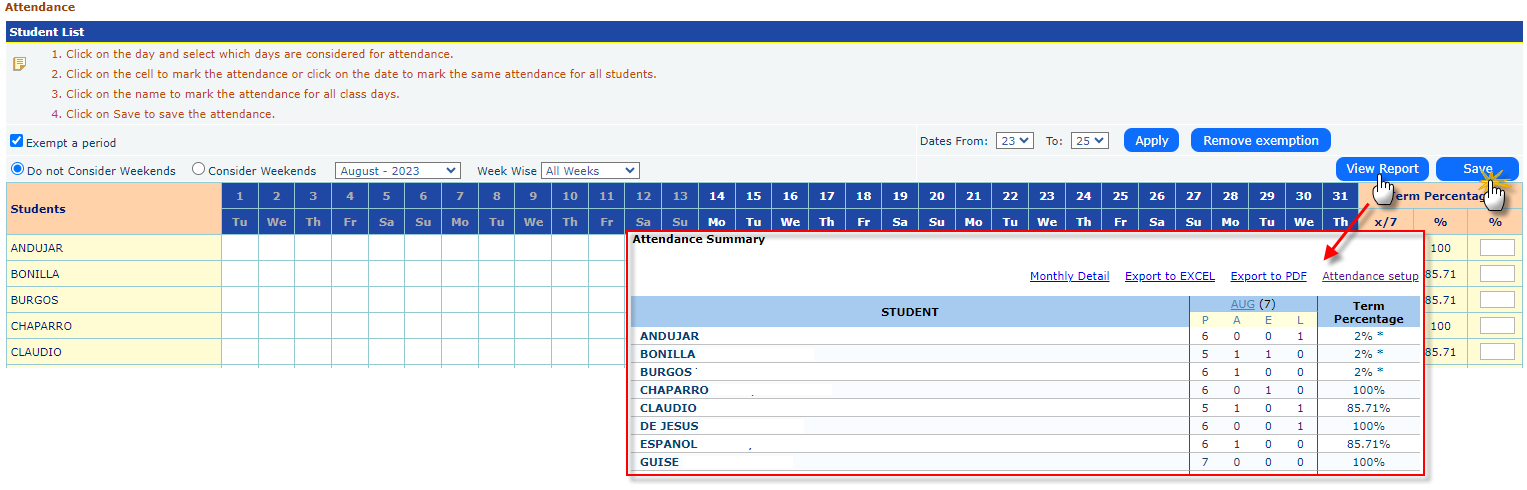
EducoSoft attendance system provides an organized way to record, track, and review student attendance, making it easy to identify absences and attendance trends for a given class or period.
- Student List and Attendance Grid:
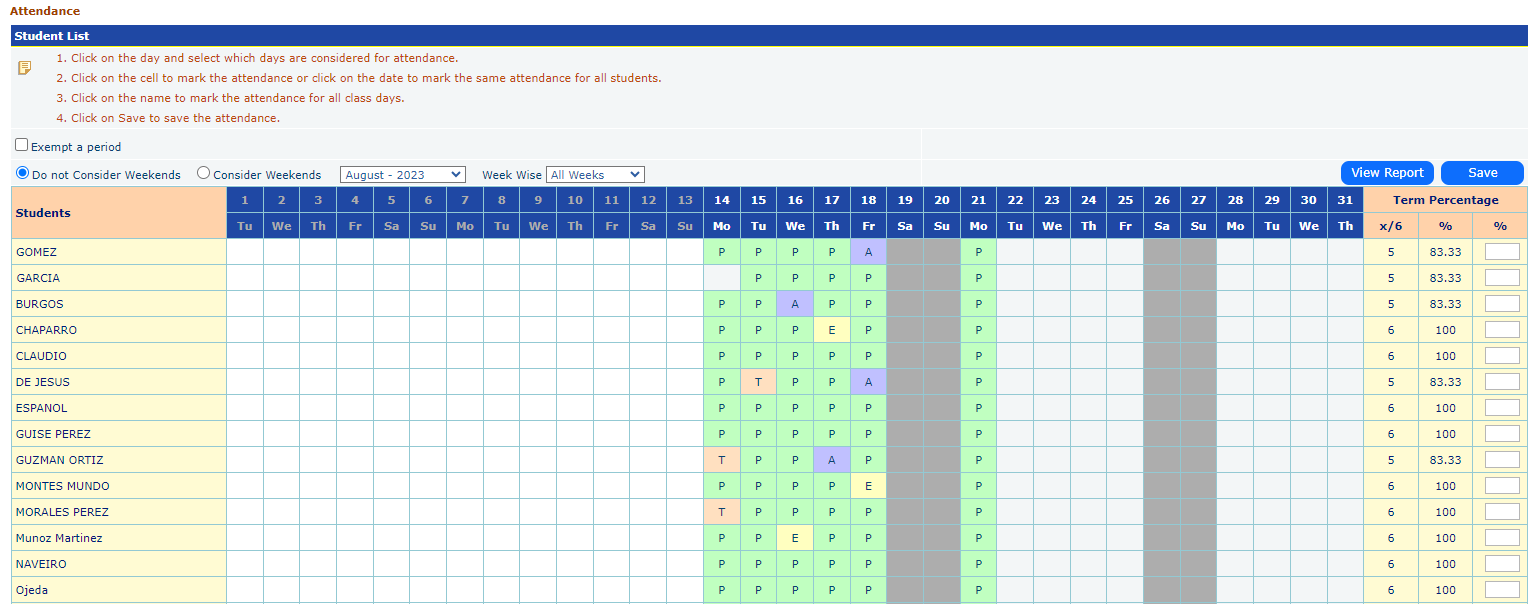
- The grid shows a list of students in the left column, with days of the month across the top row.
- Each cell represents a specific student's attendance status for a particular day.
- Attendance Marking:
- You can click on a specific day to open a menu for setting attendance status, which includes:

- All Present: Marks all students present for that day.
- All Absent: Marks all students absent.
- All Exempted: Marks all students as exempted for that day.
- All Tardy/Late: Marks all students as late.
- All Clear: Clears any previous attendance data for that day.
- Do not consider this day: This excludes the selected day from attendance calculations.
- Consider this day: Includes the selected day in attendance calculations.
- Term Percentage:
- On the right side, there is a "Term Percentage" section showing the attendance percentage for each student, calculated as "x/1" with "x" being the number of days attended.

- Exempt a Period:
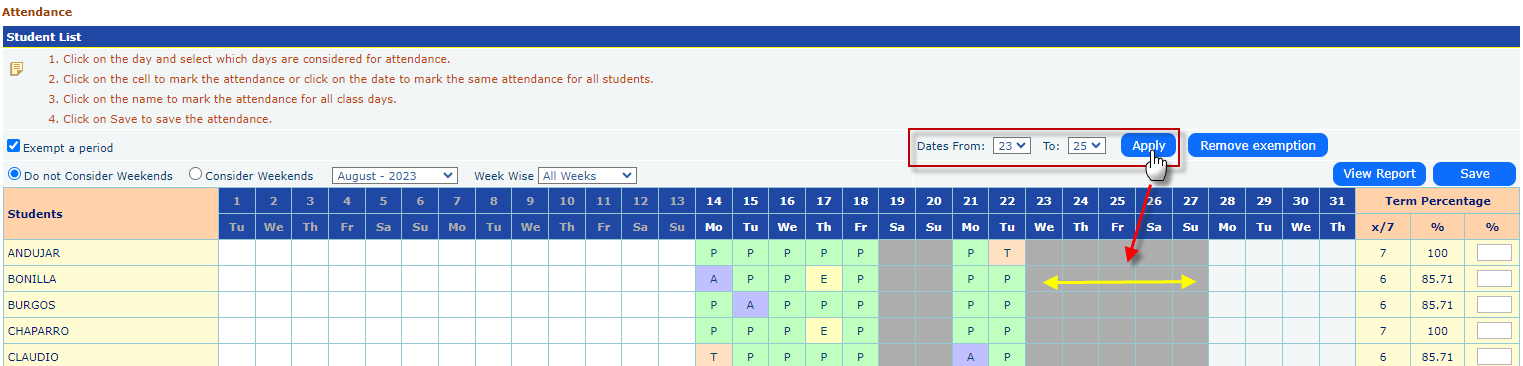
- A checkbox labeled "Exempt a period" allows instructors to exclude certain periods from attendance calculations, making it possible to customize attendance for certain days or periods.
- Customization:

- You can toggle whether weekends are considered in attendance (i.e., count weekends or exclude them).
- You can view attendance for specific weeks or the entire month using filters.
- Save and View Report:
- After marking attendance, you can save changes using the "Save" button.
- The "View Report" button generates a report summarizing attendance over the selected period.