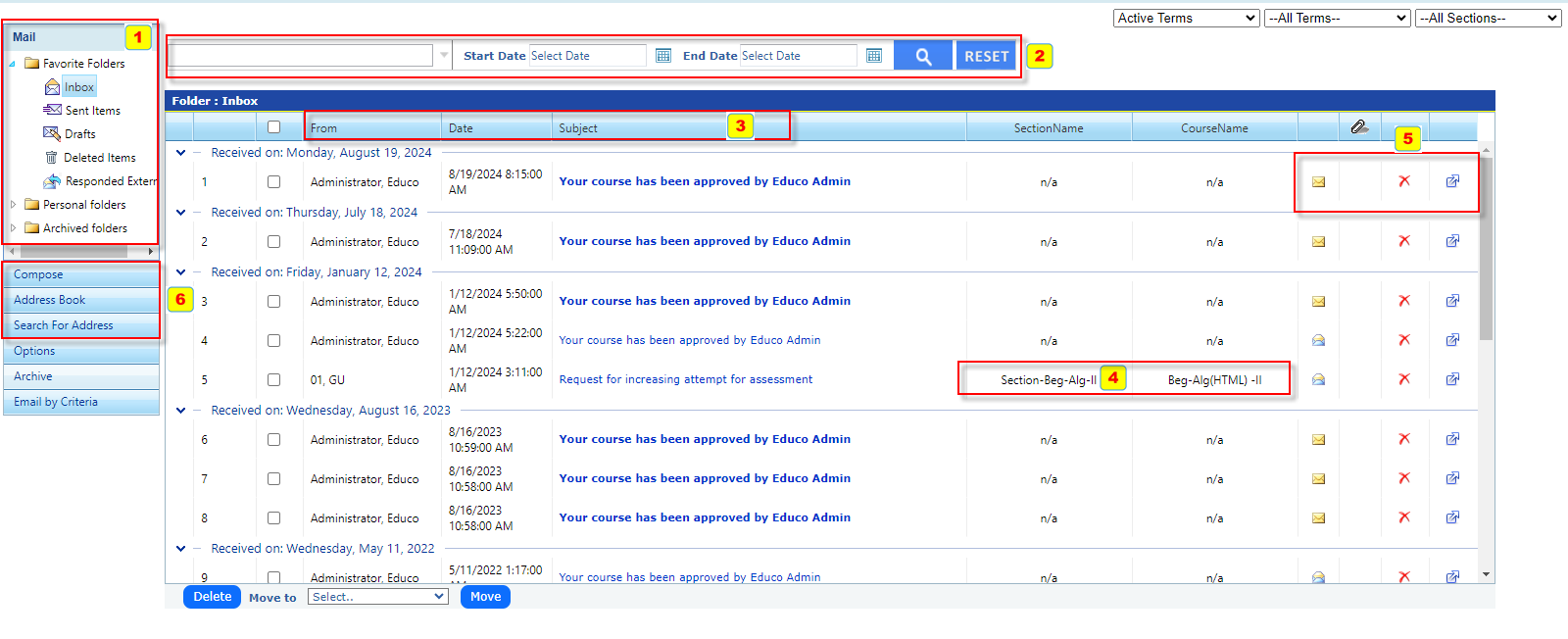
Standard email folders like Inbox, Sent Items, Drafts, and Deleted Items.
Archived Folders and Responded External are also available, suggesting the ability to archive or manage external communications.
Filtering and Search:
Date Range Filters: Users can select Start Date and End Date to view messages within a specific timeframe.
Dropdown Filters for Active Terms, Terms, and Sections, making it easier to find relevant communication based on course or semester.
Inbox View:
Messages are grouped by Received Date.
From Column: Displays the information of the person who sent the email
Subject Line: Defines the Email Subject
Course and Section Management:
The Section Name and Course Name fields are present to identify the course or section from which the user made communications
User Actions:
Each message has icons for different actions:
Envelope icon: Likely to open or mark as read.
Red X: For deleting/Archiving specific messages.
Arrow icon: Move the specific email to the "Responded Externally" folder. This option is useful when an instructor replies to a student's message from an external or regular email, allowing it to be marked as replied in EducoSoft
Delete and Move Buttons: Users can manage their emails by deleting or moving them between favourite folders.
Email Composition and Options:
Options to Compose New Messages, Address Book, and Search for Address are available, indicating the platform supports direct internal communication between users.