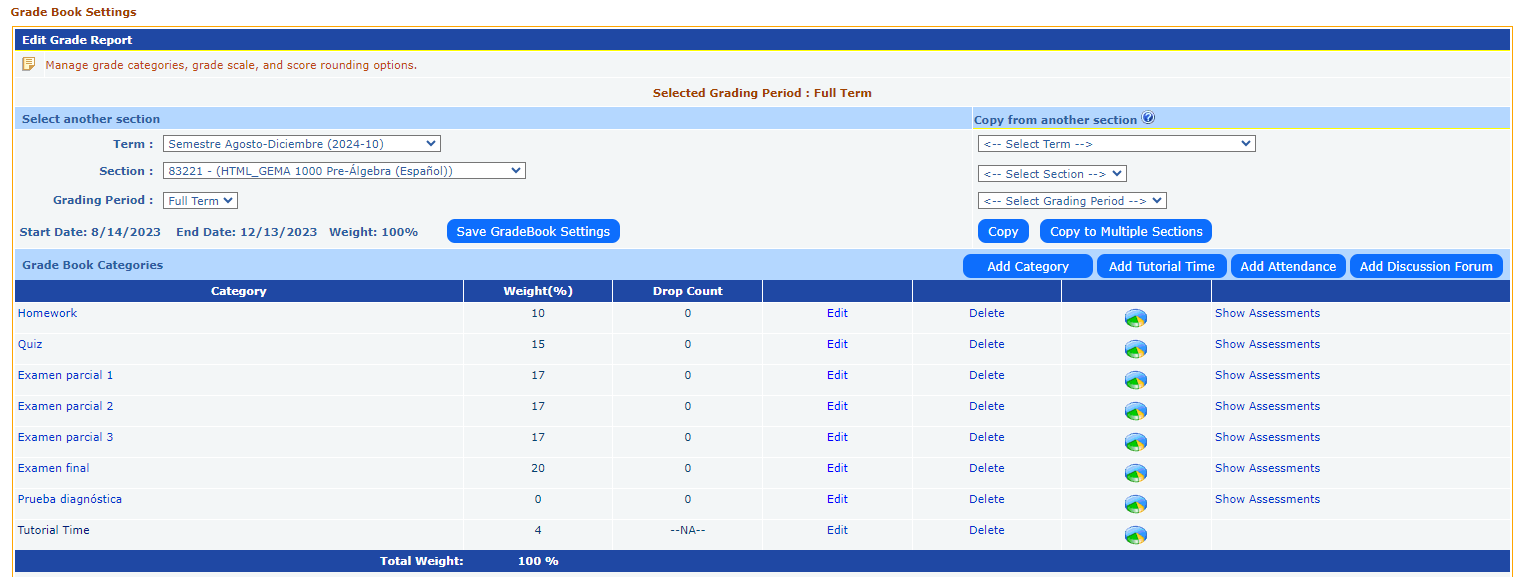
Instructors can select the specific Term, Section, and Grading Period they wish to manage. This allows flexibility in managing multiple classes or sections within the same system.
Grade Book Categories:
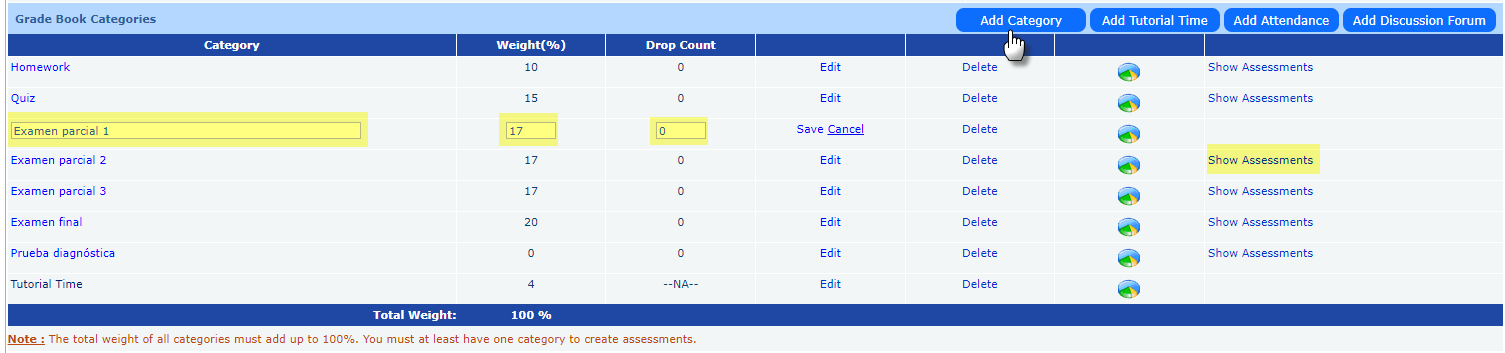
The grade book is divided into several categories such as Homework, Quiz, Exams, and Tutorial Time. Each category can be assigned a weight, which contributes to the total final grade.
Weight (%): The percentage weight for each category (e.g., Homework might be weighted at 10%, Quizzes at 15%, etc.). These weights must add up to 100%.
Drop Count: Instructors can specify how many low-scoring assignments to drop from each category. This is useful for mitigating the impact of poor performance on a single assessment.
Edit/Delete: Instructors have the ability to edit or delete each grade category. This provides flexibility in adjusting grading criteria throughout the course.
Show Assessments: A link allows instructors to view specific assessments tied to each category.
Adding Categories and Tools:
Instructors can Add Category to introduce new types of assessments.
Additional options like Add Tutorial Time, Add Attendance, and Add Discussion Forum allow instructors to include other aspects of student engagement into the grading system.
Grade Scale:
The Grade Scale section outlines the grading system. Instructors can customize how letter grades (A, B, C, etc.) correspond to percentages.
Each grade level includes a Description/Comment to provide feedback to students based on their performance, such as:
A: "Congratulations! Your performance is Excellent"
F: "You are not passing. You need to learn the concepts."
Minimum % of Total Score: This column shows the percentage range required to achieve each grade. The minimum score for an A might be set at 90%, for example.