
Score By Assessment
The EducoSoft Score by Assessment report (as shown in the screenshot) provides an overview of student performance for each assessment in a course. Here's a breakdown of how it works based on your provided image:
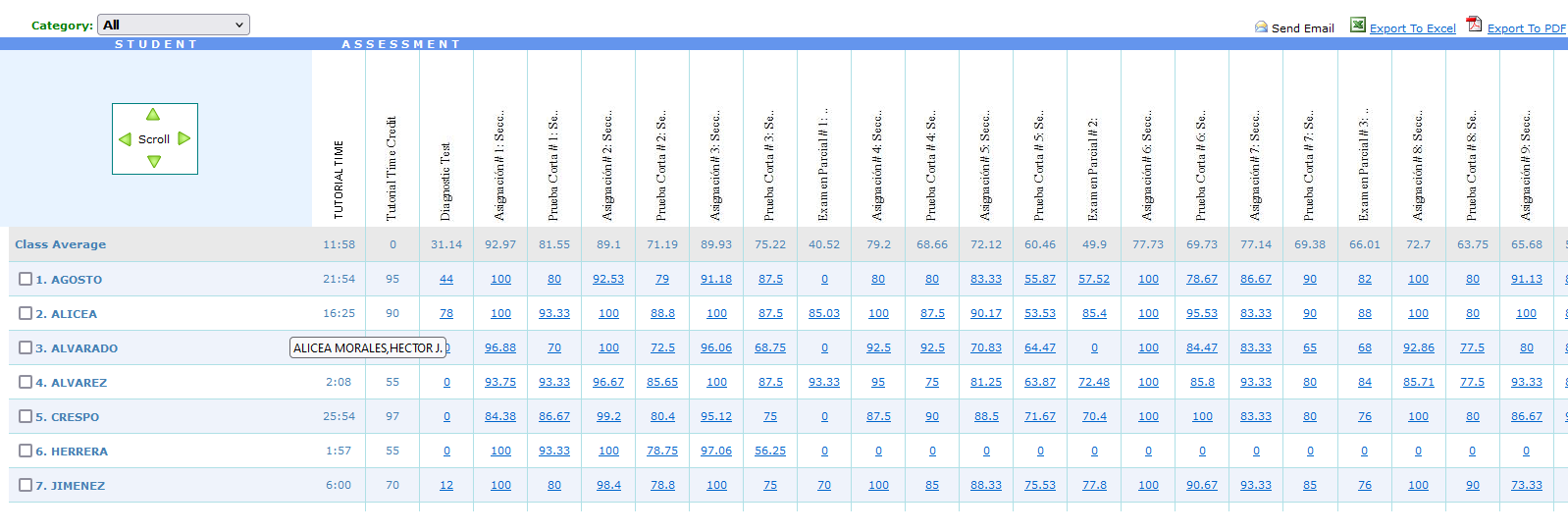
Report Elements:
Category Dropdown:
- The Category filter at the top allows instructors to focus on specific types of assessments (e.g., quizzes, exams) or view all at once.
Student List:
- Each row represents an individual student, identified by name.
- Students are listed in order, and their scores for every assessment are displayed horizontally across the row.
Assessment Columns:
- Each column under Assessment corresponds to a specific test, quiz, or task. Examples include:
- Tutorial Time (measured in minutes)
- Tutorial Time Credit
- Diagnostic Test
- Regular assessments such as Prueba Corta (short tests) and Examen Parcial (partial exams).
Class Average Row:
- At the top, you see Class Average for each assessment, providing insight into overall class performance.
- This helps the instructor quickly identify which assessments were more challenging based on lower averages.
Student Scores:
- For each student, individual scores are recorded per assessment.
- Scores may be shown as raw numbers or percentages depending on the assessment type.
- Some scores (like 0) indicate missing or incomplete submissions.
Interactive Features:
- A scroll navigation tool allows for easy horizontal scrolling, especially when the report contains many assessments.
- Export Options:
- You can export the report to Excel or PDF for further analysis or record-keeping.
- There's also an option to send the report via email directly from the system.
Highlighted Scores (Links):
- Certain scores are hyperlinked, indicating that clicking them provides more details about that specific student’s performance in the corresponding assessment.
How to Use This Report:
- Identify Struggling Students: Look for low scores or patterns across multiple assessments.
- Track Class Progress: Use the class average to assess overall learning trends.
- Target Improvement Areas: Focus on assessments with lower class averages to revisit content or improve teaching strategies.
- Export Reports: Use the Excel/PDF export options to share results with administrators or students.
This report is a helpful tool for continuous monitoring and allows instructors to make data-driven decisions about curriculum adjustments.