
Class Roster Overview
On the roster page, the instructor can take class attendance, email students, and remove students from the course, among other options.
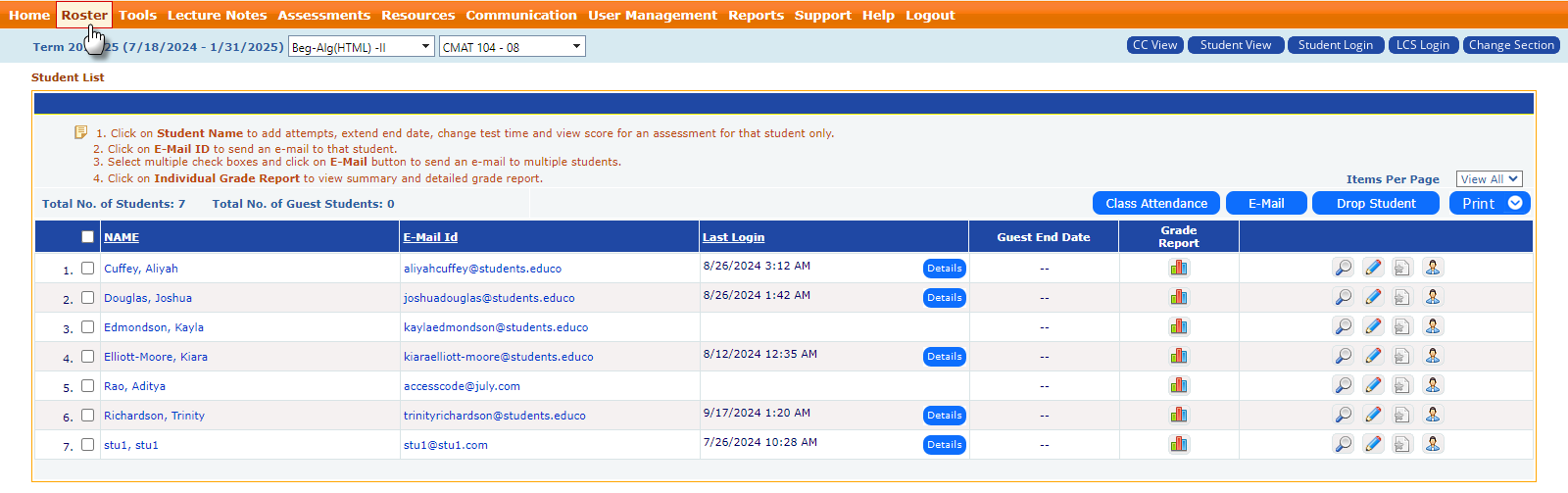
Here's what you can do on the Roster Page:
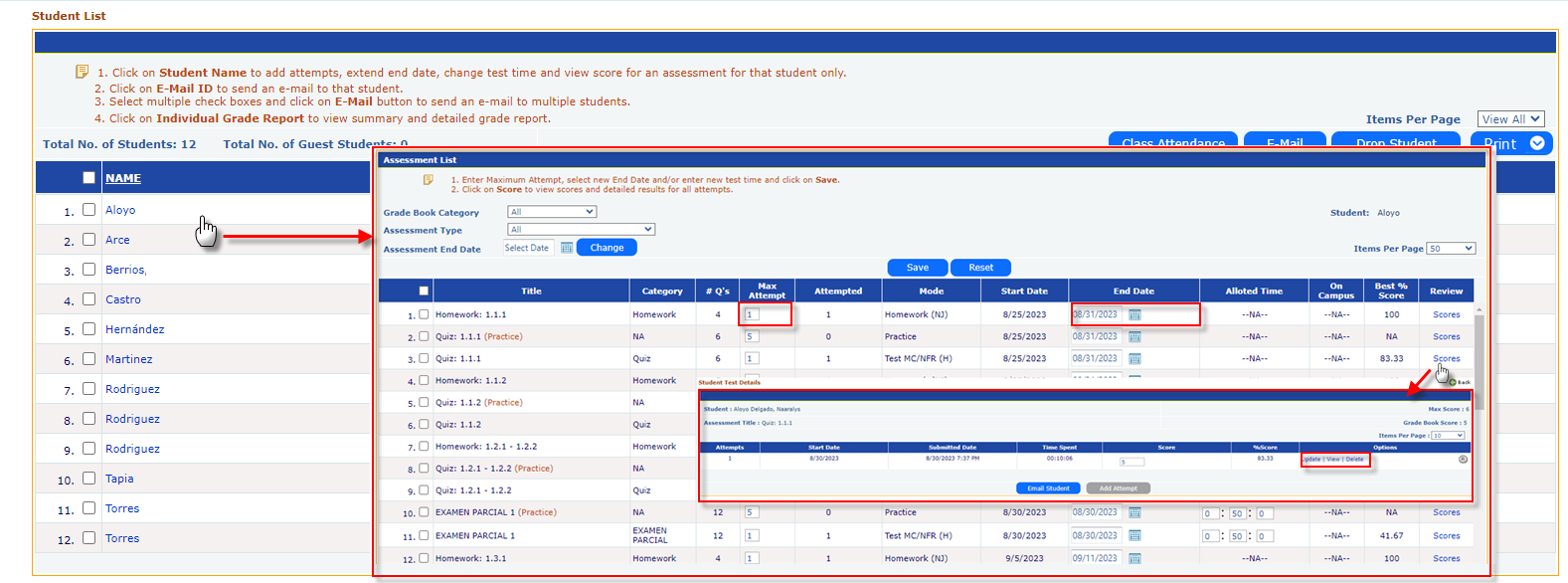
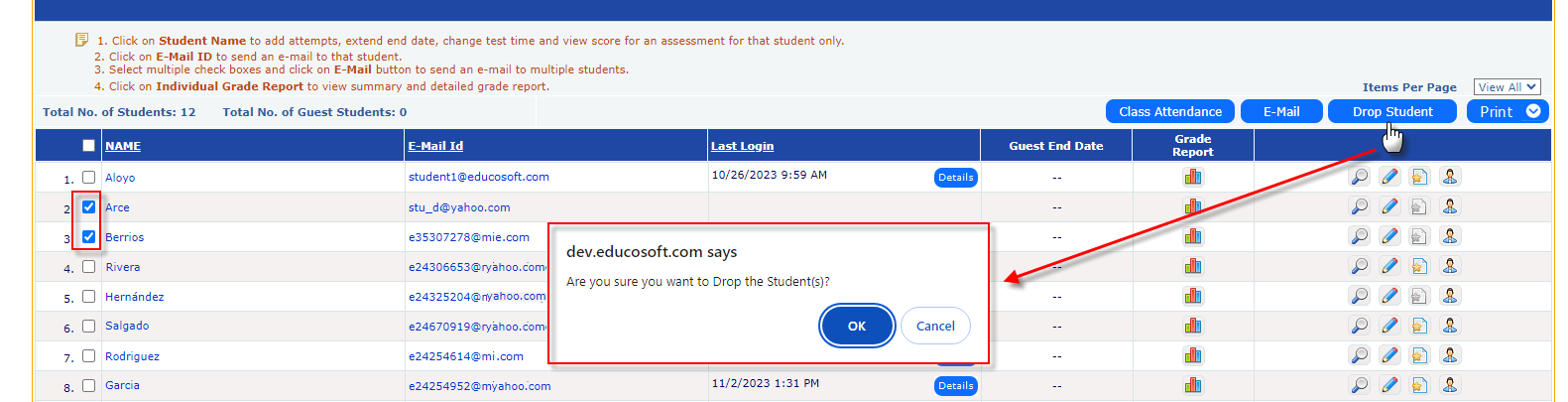
- Click on an individual student's name to add attempts, extend the end date, change the test time, and view the score for an assessment.
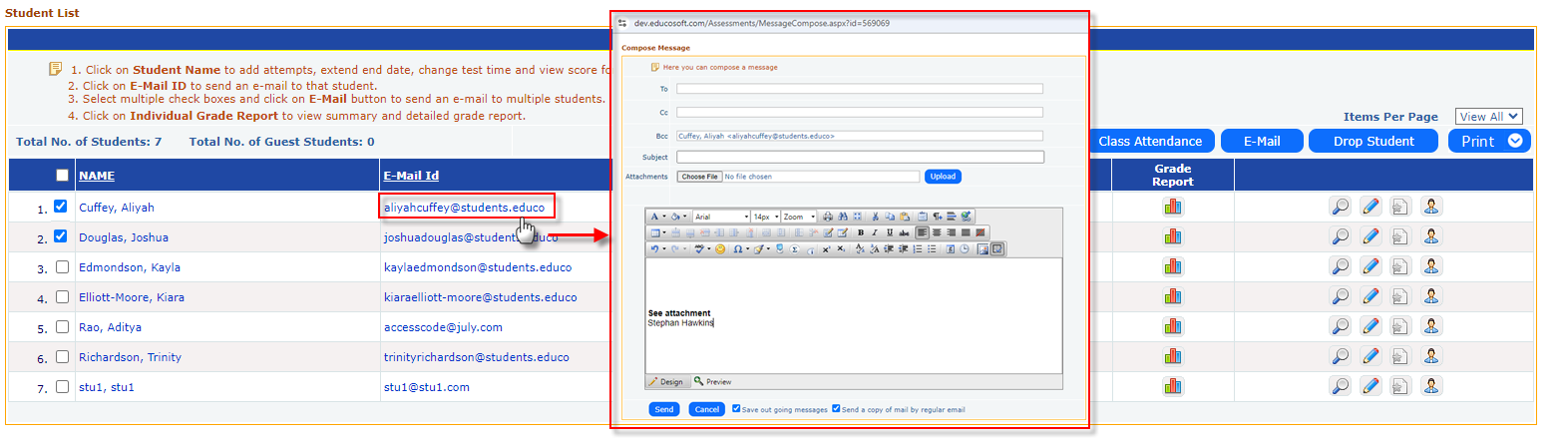
- Click on the corresponding student's email address to send an email to that student OR select multiple check boxes and click the "E-Mail" button to send emails to multiple students.
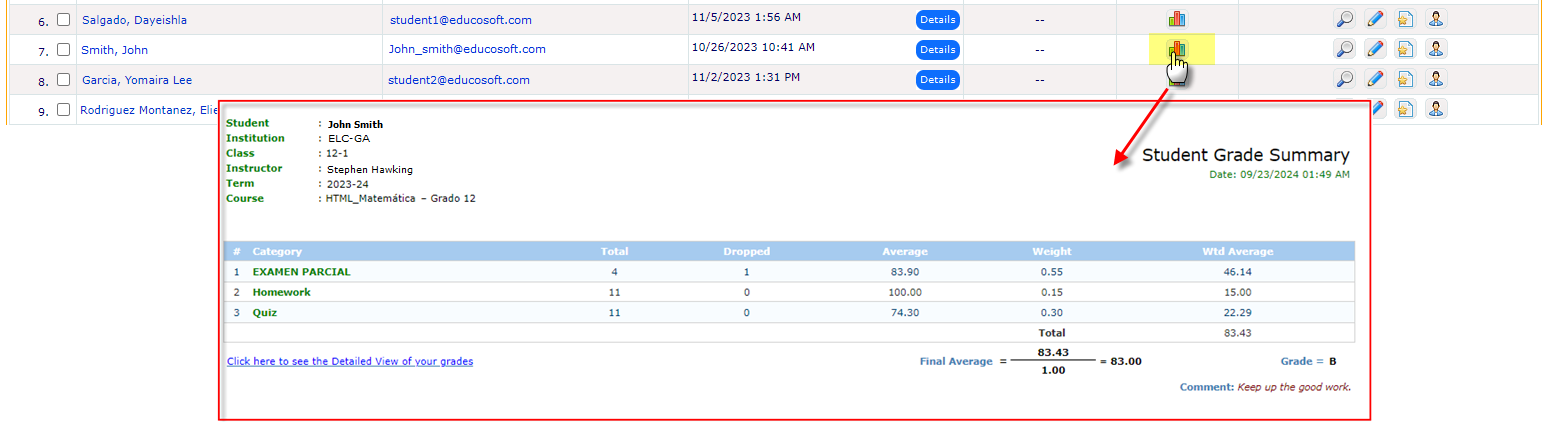
- Click on "Individual Grade Report" to view a summary and detailed grade report.
- Select the student(s) and then click on the "Drop Student" button to remove them from the class.
- Instructors can log in as students by clicking on an icon. This icon would appear if the CC permits to allow instructor to login as student.

This page offers a robust set of tools for instructors to manage their students, grades, attendance, and communication efficiently.