
Creating Assessment(s)
Assessment [View/Create] Listing:
This page lists all the assessments created or imported for the course section.
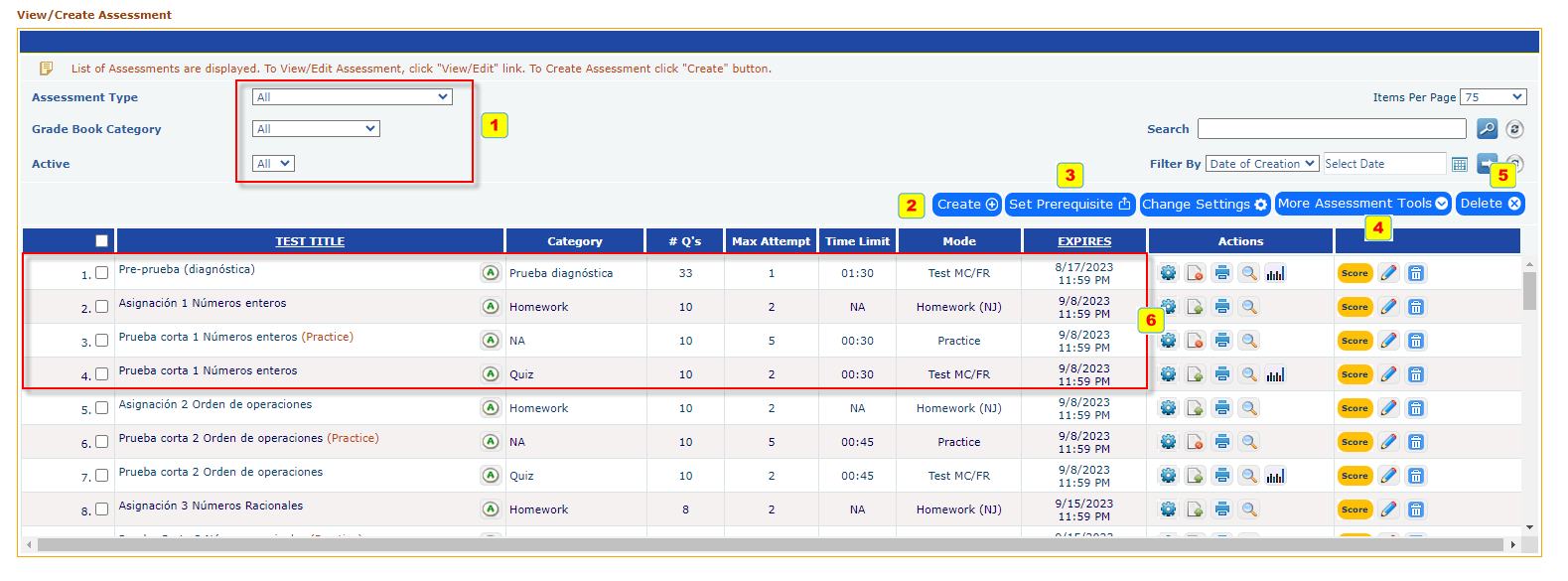
- Assessments can be filtered in the list by the following four options: Type / Grading Period / Category / Active.
- Click on the button to create a new assessment.
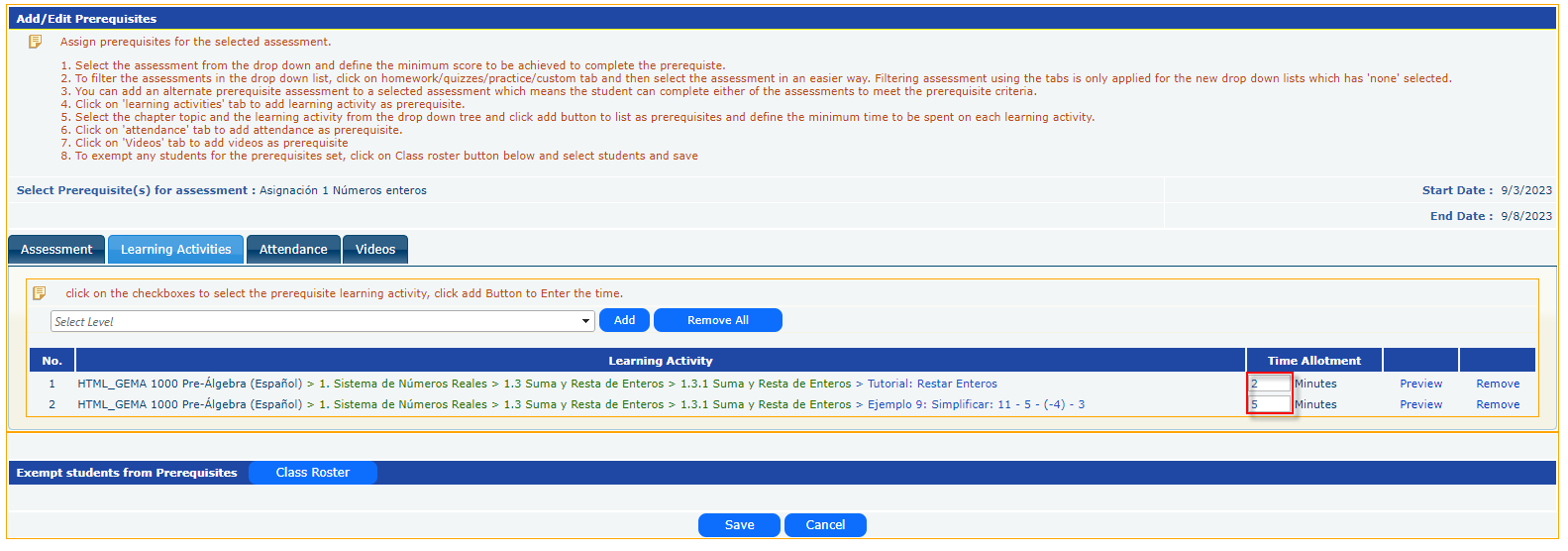
- Click on the button to Add, Edit or Delete Pre-requisites for any assessment.
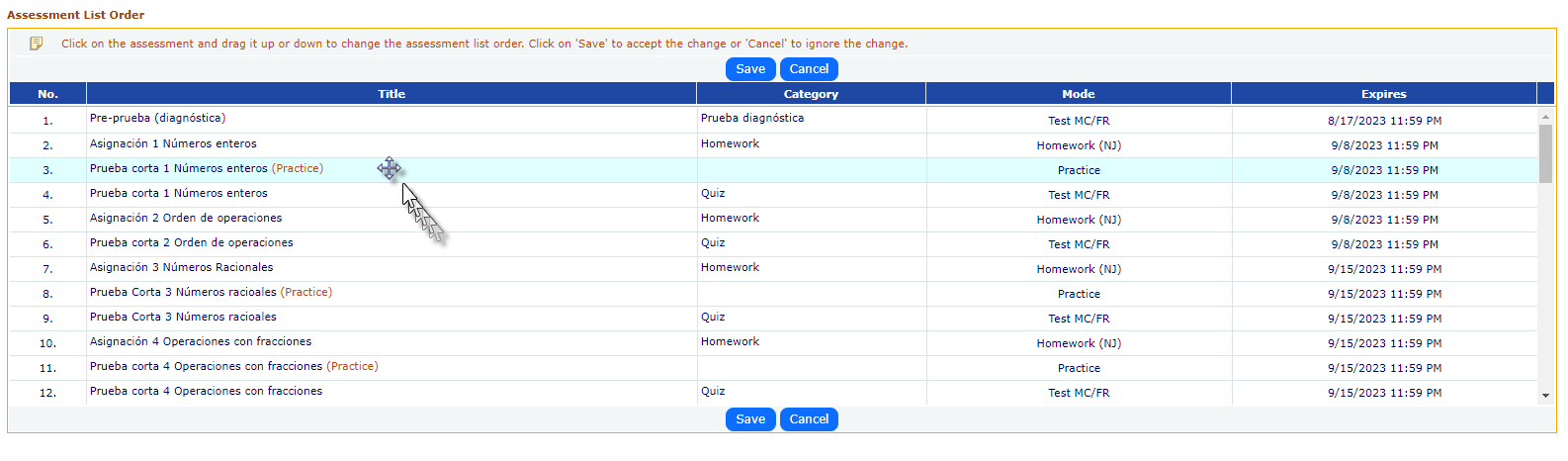
- Click on the button to change the listing order of the assessments or to view the deleted assessments list.
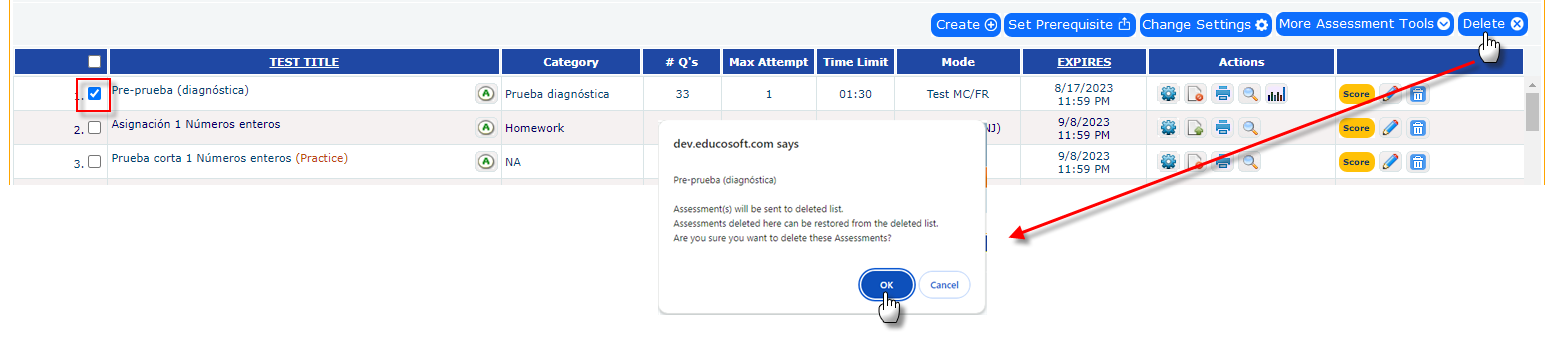
- Click on the button to delete the selected assessment.
- The list contains all the information about the listed assessment including: Title, Category defined in the gradebook, Number of questions, Max Attempts, Time assigned, Test Mode, Expiry date, Links to edit assessment settings, add/edit the pre-requisites, option to print and to preview the assessment as delivered to the students.

Create Any New Assessment:
The page below is displayed if the user clicks on “Create Assessment” button.
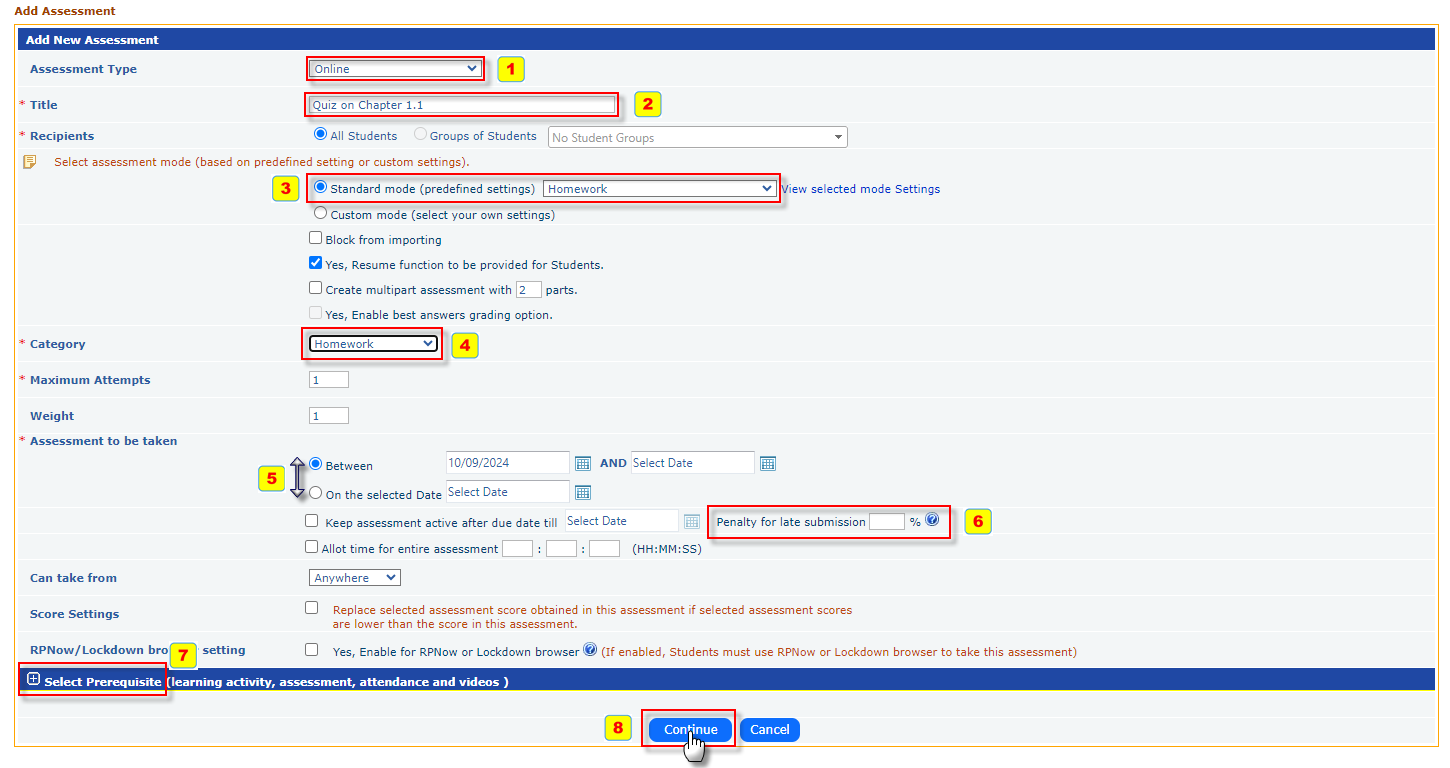
- Select Assessment Type: Online or Hand-graded.
- Enter the title of the assessment you are creating.
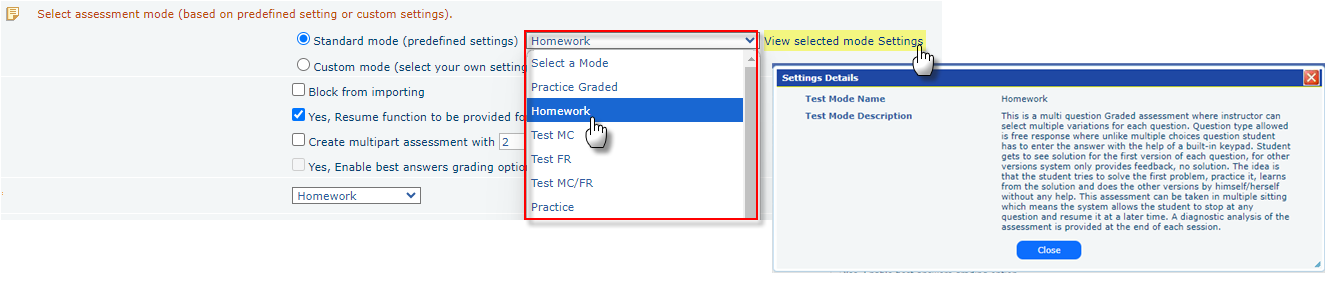
- Select Mode: Select Homework to create a homework or Test MC/FR to create a test.
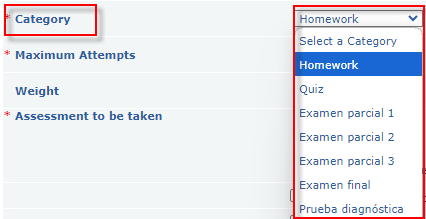
- Select Category: As built in the Grade Book.
- Select the Start Date and End Date. Enter the time limit, (not needed for homework).

- This option will leave the assessment active even after expiry of end date. Score for late submission will reflect X% deduction.

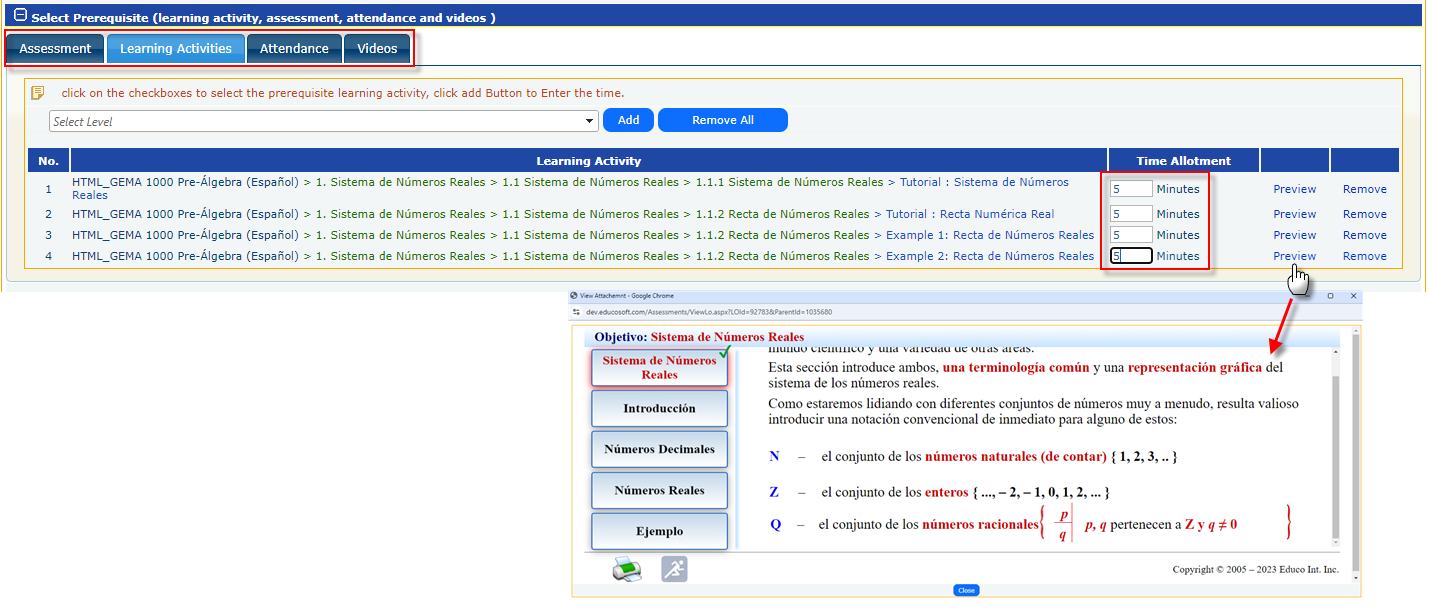
- Assign Pre-requisites: Learning Activities, Assessment, Attendance or Video for the assessments by clicking “+” sign.
- Click on Continue to save assessment settings.
Select the Topics for the Assessment:
After clicking on the Continue link from the above screen, the TOC of the course is displayed to select chapters or topics to be covered in the assessment.
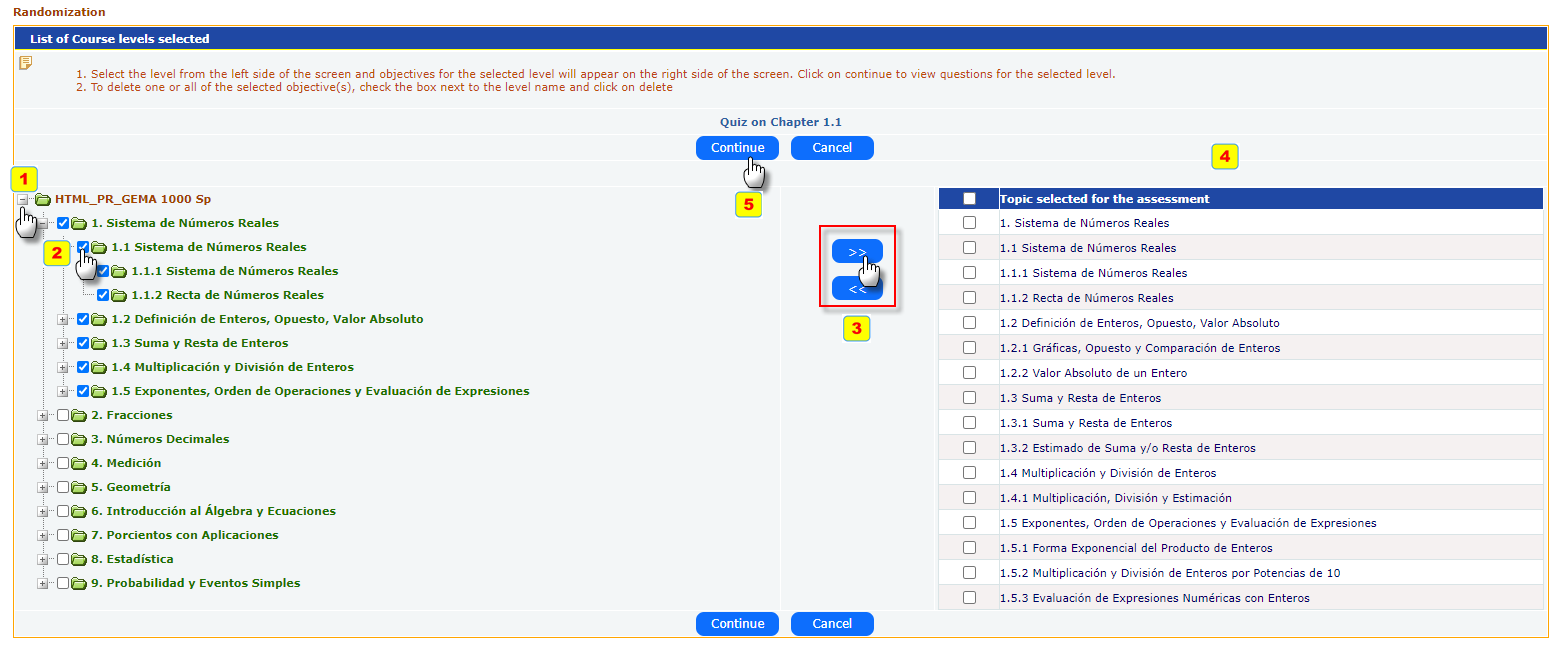
- The “+ “ button on the left will expand chapters to sections.
- Click on the check box before the Chapters/Sections title you want to use in your assessment.
- Click on the right arrow button.
- All selections made from the listing on the left are displayed in the column on the right.
- Click on continue to go to the next page to select questions from the selected topics.
A list of all the questions on the selected topics appears.
There are 7 columns in this table.
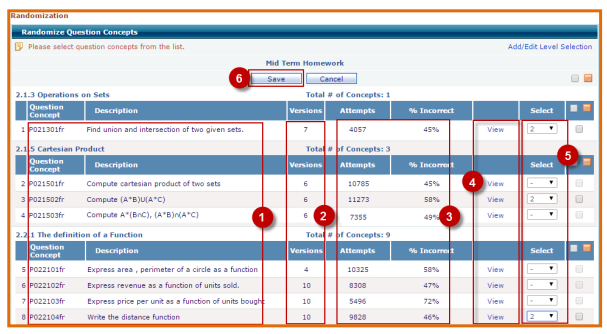
- You will see codes and descriptions for each item.
- Lists the number of available variations of the question.
- Attempts and % incorrect columns describe the number of times the question has been attempted by students and the percent of students that answered the question wrong in previous terms.
- The view link displays the actual question in a pop-up window.
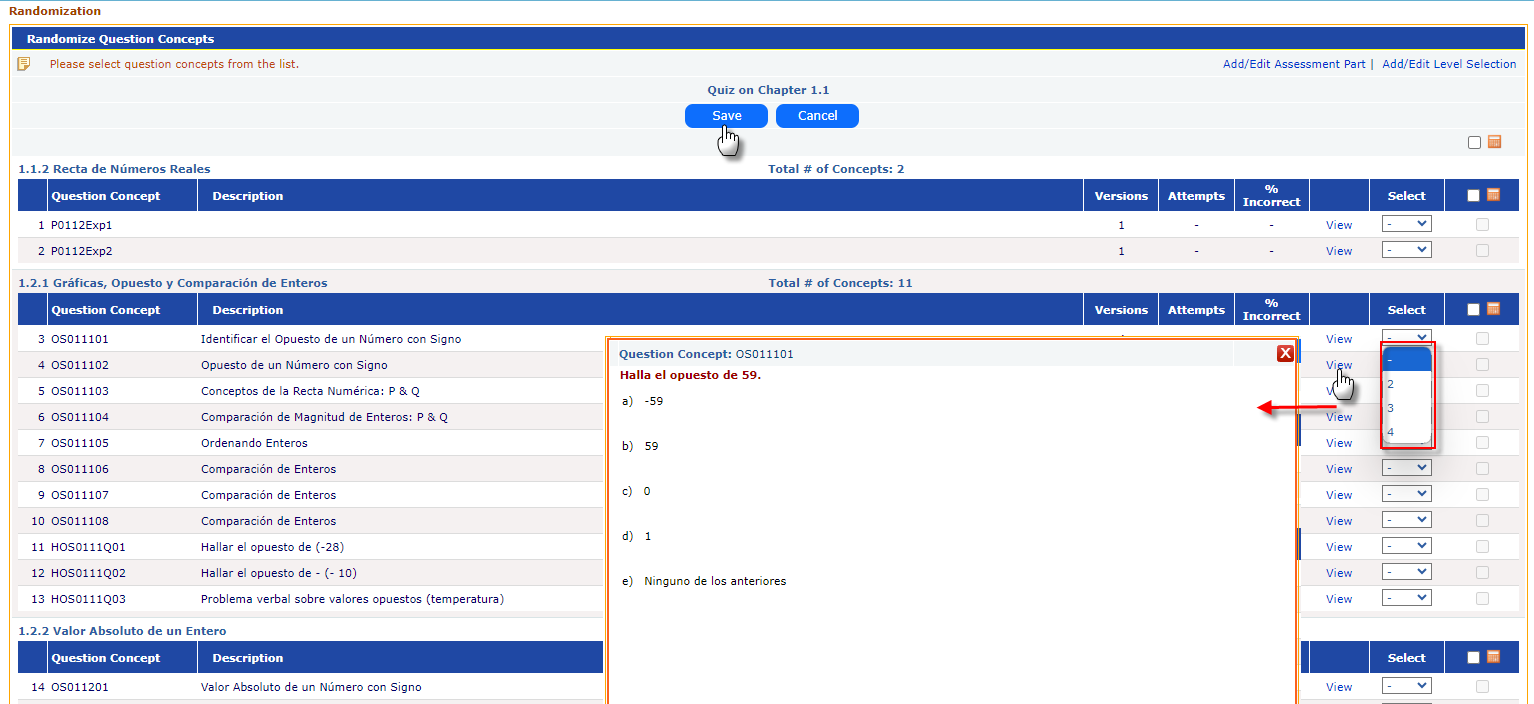
- Select the number of variations of the question you want in the Homework. This option is available only for Homework mode. In this mode, instructor has to select at least two variations. In case of Test select the questions rather than selecting variations. After selecting the questions, Click on the Save button to view the added questions.
Save or Print the Assessment:
After clicking on save button in the above screen, you will see a page with several options, besides listing one sample of each question selected. Options listed in the right column provide several features summarized below.
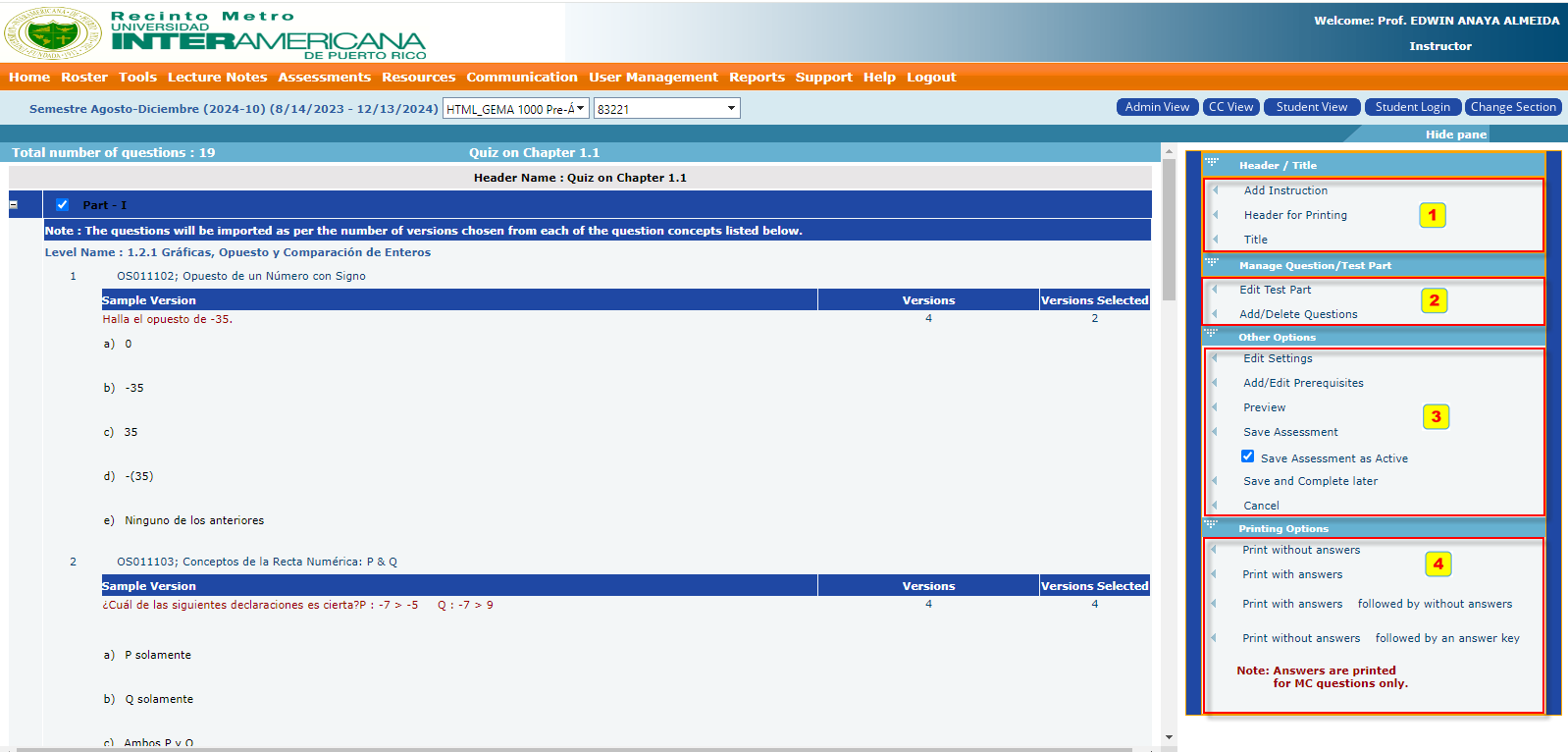
- In block (1), links are for creating or editing the header for printing, or title for the assessment.
- In block (2), you see options to create test parts or add/delete test items.
- The first three links in block (3) allow you to change test setting, preview the assessment on screen, or save the assessment.
- In block (4), you see several options to print the test.