
Editing Assessment Setting(s), Extending Dates, Adding Attempt, and Editing Test Items
Editing Assessment Settings:
- Navigate to Assessments > View/Create to view the list of assessments.
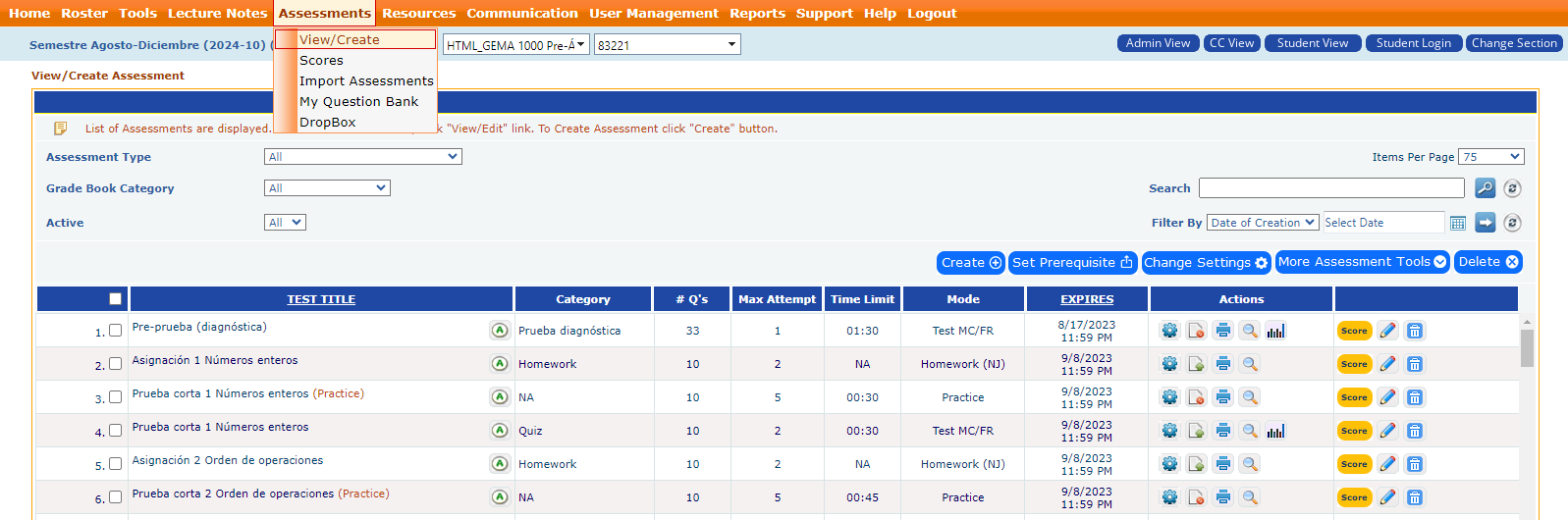
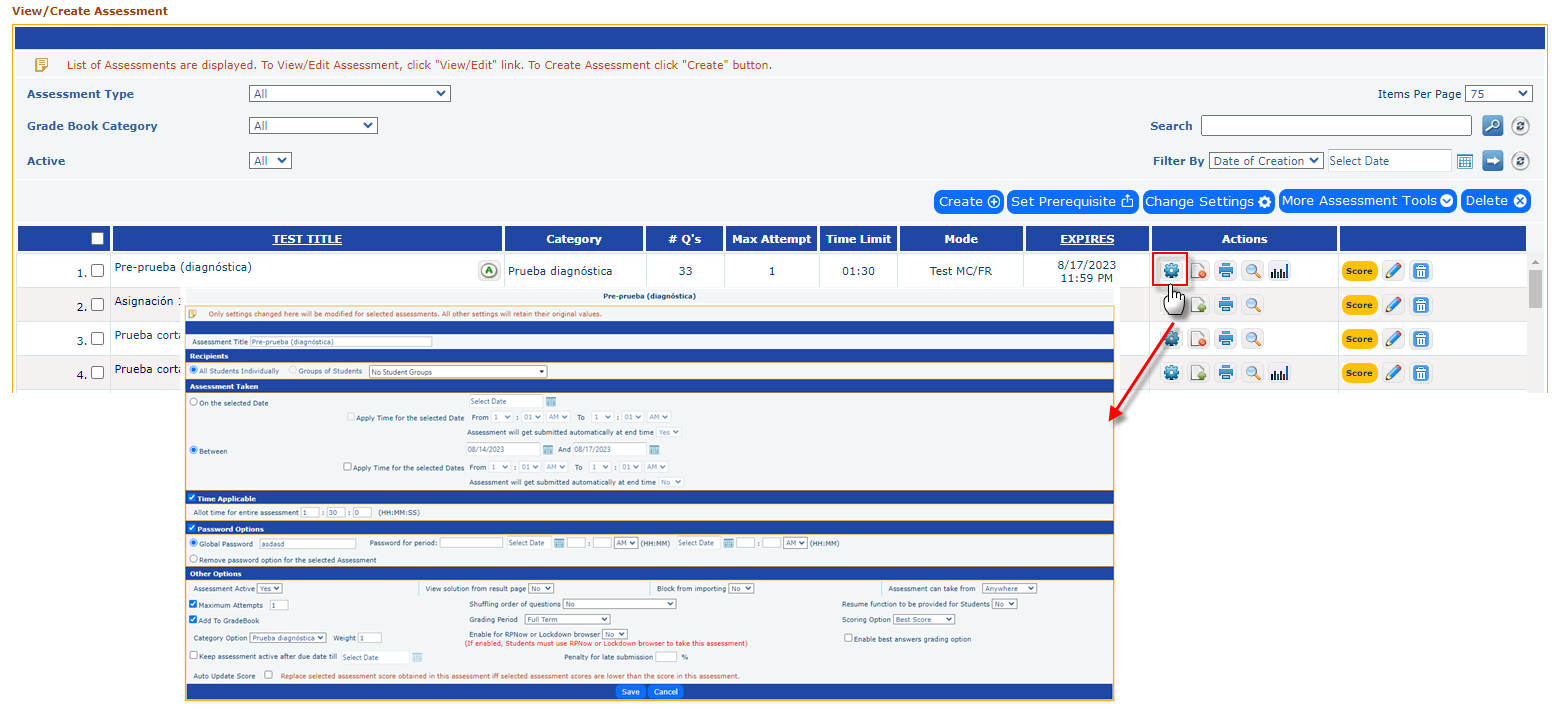
- For a Single Assessment: Click the settings button next to the assessment to modify its date and other settings.
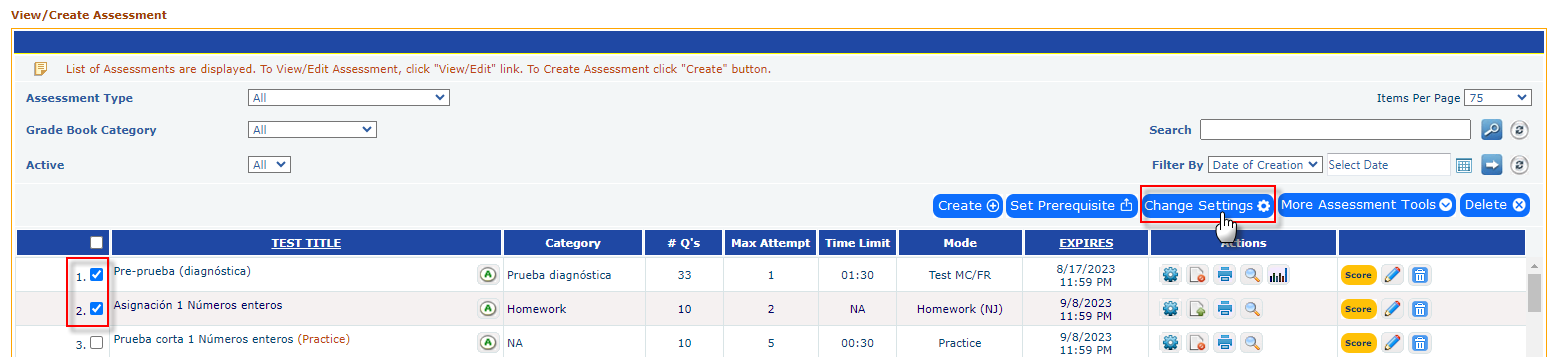
- For Multiple Assessments: Select the checkboxes for the desired assessments and click the settings button.
- On the settings page, you can:
- Modify the start and end dates as needed.
- Set a password for the assessment.
- Adjust the maximum number of attempts for the entire class.
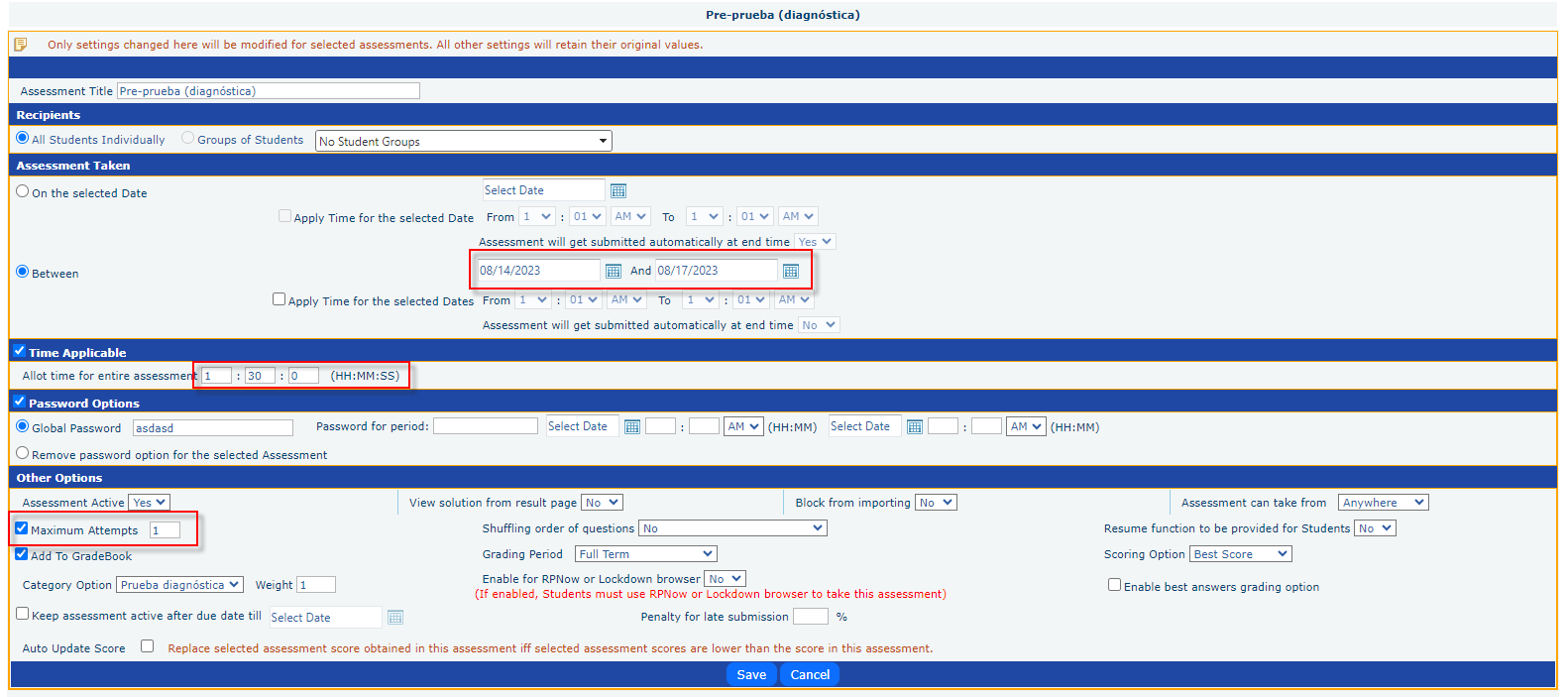
- After making changes, click the Save button to apply the new settings.
Modifying Assessment Items:
Steps to Edit Assessment Items:
- Open the Assessment Editor:
- Click on the Edit button for the assessment you want to modify.

- Navigate to the Edit Page:
- A new page will open, allowing you to add or edit items within the assessment. Note down the Question Codes for any items you want to delete or replace.
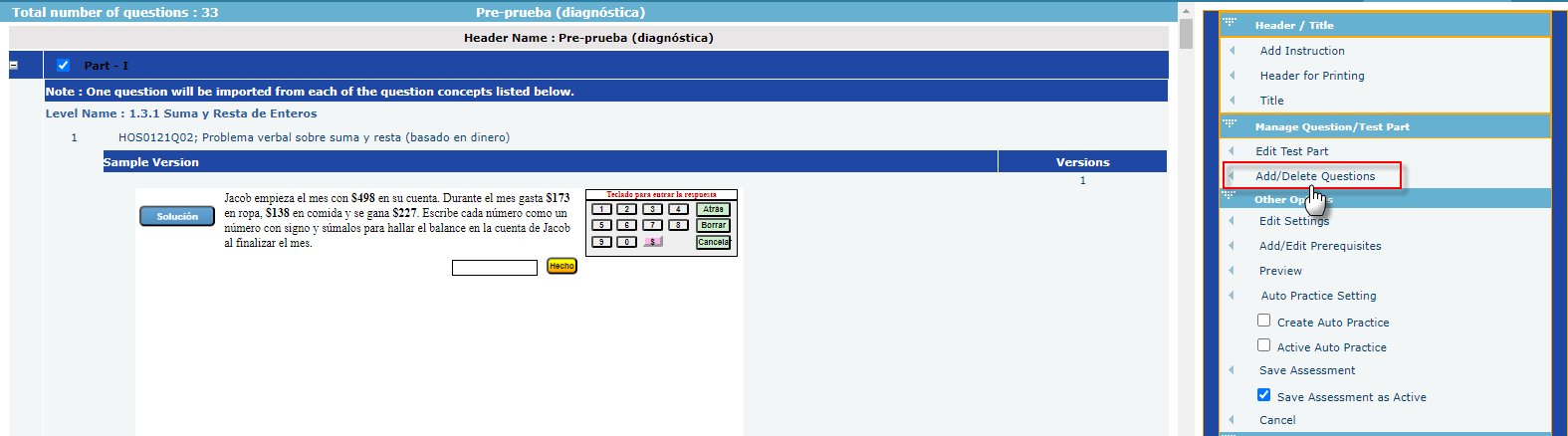
- Access the Question List:
- Click on the Add/Delete Question link to view the question listing.
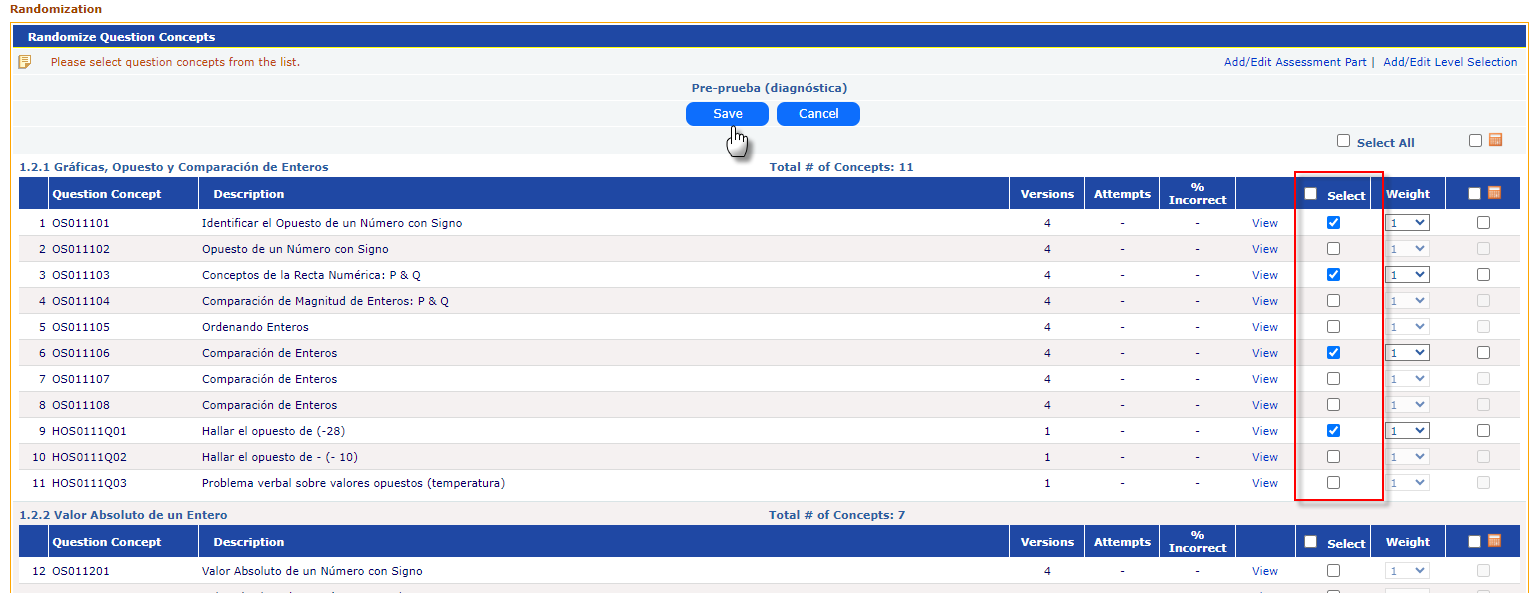
- Deselect and Select Questions:
- Uncheck the boxes for the questions you want to remove.
- Select the checkboxes for any new questions you want to include.
- Save Your Changes:
- Click on the Save button to apply your modifications to the assessment.