
My Notes Overview
The My Notes feature in EducoSoft allows instructors to manage and organize notes and supplemental documents for their courses. It offers various functionalities to enhance course materials efficiently. Here's a detailed description:
- Accessing My Notes:
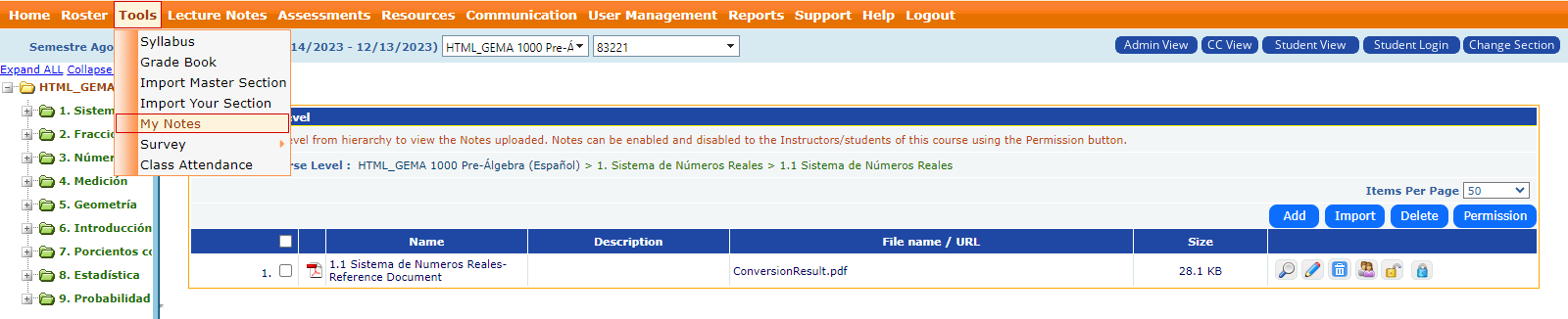
- From the Tools dropdown menu, select My Notes to view, add, or import notes associated with the course.
- Adding Notes and Supplemental Documents:
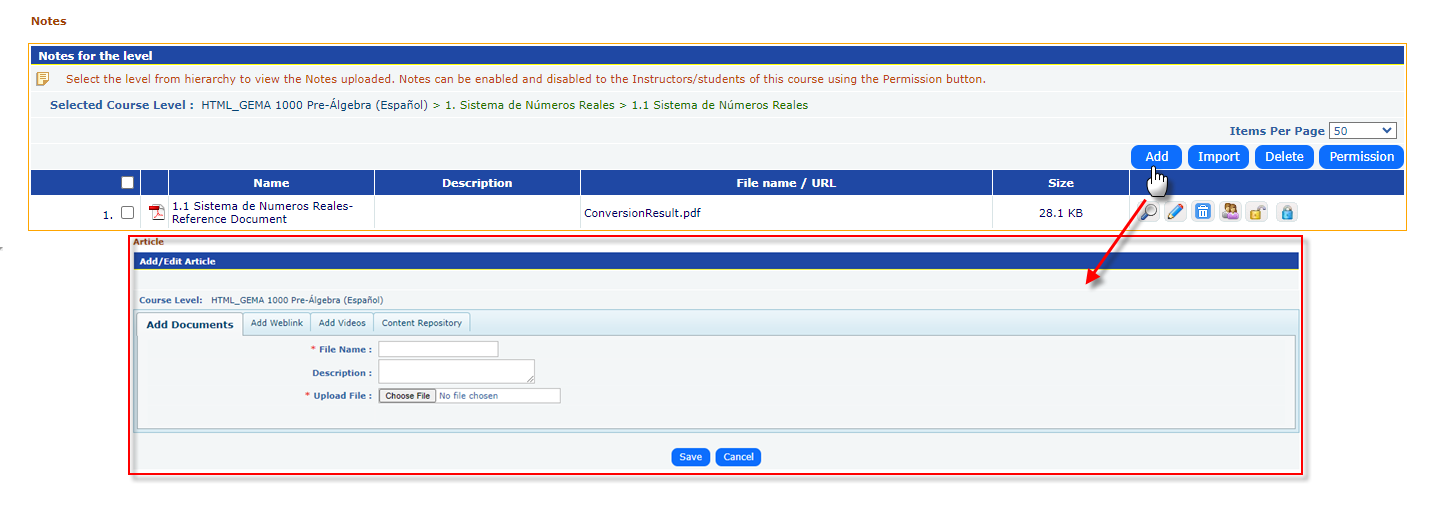
- You can click the Add button to upload new notes or supplemental materials. This section is labeled Add/Edit Article, and provides options to:
- Add Documents: Upload documents to the course by specifying the file name, adding a description, and selecting the file to upload.
- Add Weblink: Include relevant web links as part of the course content.
- Add Videos: Upload videos related to the course.
- Content Repository: Access previously saved resources from the content repository.
- Supplement Documents: You can add supplementary documents to specific levels of the course hierarchy. Simply select the level from the hierarchy where you want to upload the file and click Add. The file will be displayed next to the selected level in the course structure, making it easy for students or instructors to identify its relevance.
- Enabling/Disabling Notes:
- Notes can be enabled or disabled for either instructors or students of the course using the Permission button. This allows instructors to control which notes are visible to students, offering flexibility in managing course materials.

- Importing Notes:
- The Import button allows instructors to bring in notes from their own previous sections or from another instructor's course. The Import My Notes section provides:
- A dropdown menu to select the Instructor Name from whom notes will be imported.
- A list of notes available for import will be displayed (if applicable), allowing the instructor to select and click Import to integrate them into the current course.
- Managing Course Hierarchy:
- Instructors can organize course levels and associated documents within the course hierarchy. By clicking Add or Delete, they can add new levels to the hierarchy or remove existing ones. The supplemental materials uploaded will appear next to the respective level in the hierarchy when viewed, helping to maintain structured and clear content organization.
This functionality supports content management, allowing instructors to structure and distribute materials effectively, while controlling accessibility and visibility for students.