
Import Your Section Overview
The Import Your Section feature allows instructors to copy content from one section they previously taught to another. Here's how the process works:
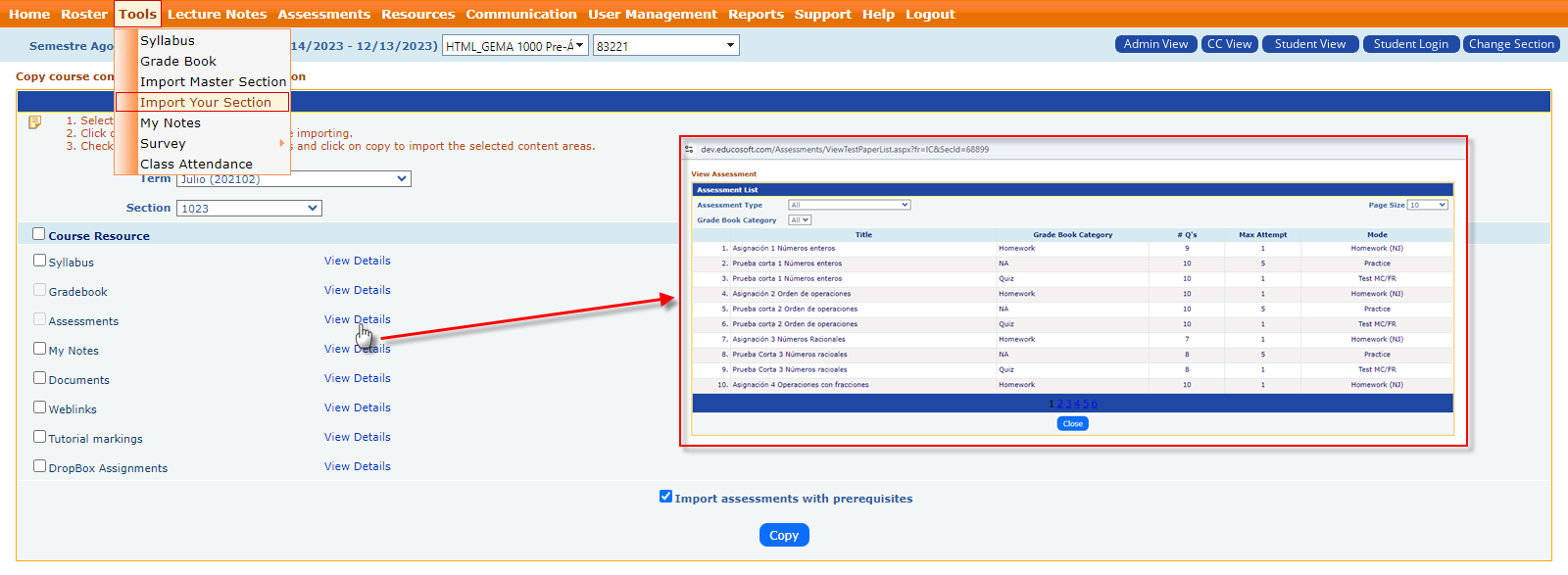
- Accessing the Tool:
- Navigate to the Tools menu.
- Select the Import Your Section option from the dropdown.
- Copy Course Content:
- The system lets you select the Term and Section from which you want to import materials.
- Once selected, you can choose which Course Resources to import. Available resources include:
- Syllabus: Course outline and policies.
- Gradebook: Grade categories, assignments, and grading structure.
- Assessments: Quizzes, exams, and other assessments.
- My Notes: Instructor notes specific to the section.
- Documents: Uploaded files and materials.
- Web Links: Hyperlinks to external resources.
- Tutorial Markings: Tutorial session settings and grading.
- DropBox Assignments: Assignments submitted through Dropbox.
- Import Assessments with Prerequisites:
- You can check the box to Import Assessments with Prerequisites, ensuring that any conditions or prerequisites attached to assessments in the original section are preserved during import.
- Viewing Details:
- Each course resource has a View Details link, allowing the instructor to review specific details before deciding to import them.
- Copy Action:
- After selecting the appropriate content, click the Copy button to transfer the selected resources into the current section.
This feature helps instructors to efficiently transfer relevant content between sections, ensuring consistency in course delivery across different terms.