
My Settings Overview
The "My Settings" section in EducoSoft allows users to configure various personal and functional preferences. Here's a summary of the available settings:
Go to User Management > My Preferences > My Settings > My Settings Tab.
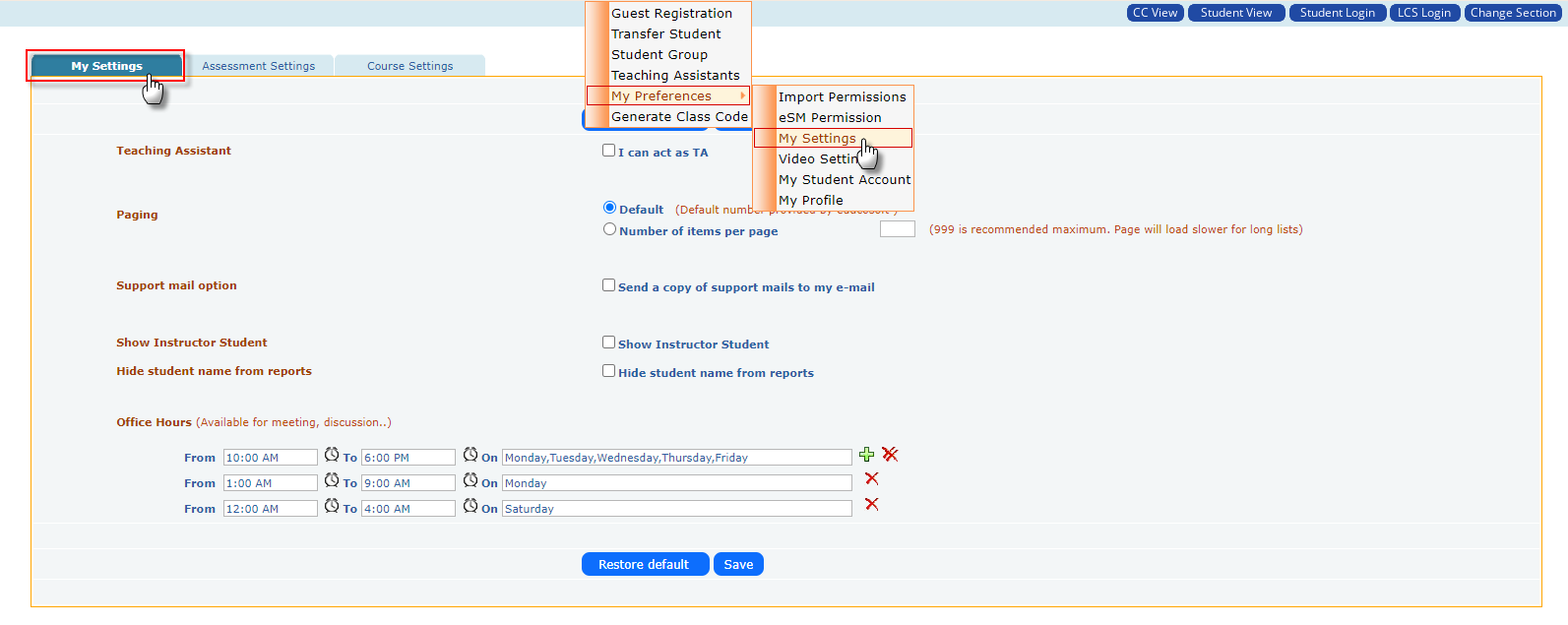
- Teaching Assistant: The instructor has an option to ‘I can act as TA’. Once this option is checked and the settings are saved, the instructor can Act as a TA. The TA Login button appears at the top adjacent to the Student View button, and the instructor will be listed in the TA search for others.

- Paging:
- Default Number: (The default number provided by EducoSoft is 10).
- Items per Page: The instructor can set the Number of items per page. (The recommended maximum is 999; longer lists may slow down page loading)

- Support mail option: By selecting "Send a copy of support mails to my email" the instructor will receive a copy of the emails to their external/registered email address whenever a student raises a question or concern using the "contact instructor" option.

- Show Instructor Student: Select this option to list the instructor-student account in the roster screen.

- Hide Student Names from Reports: To ensure confidentiality and privacy, student names will be concealed in reports.

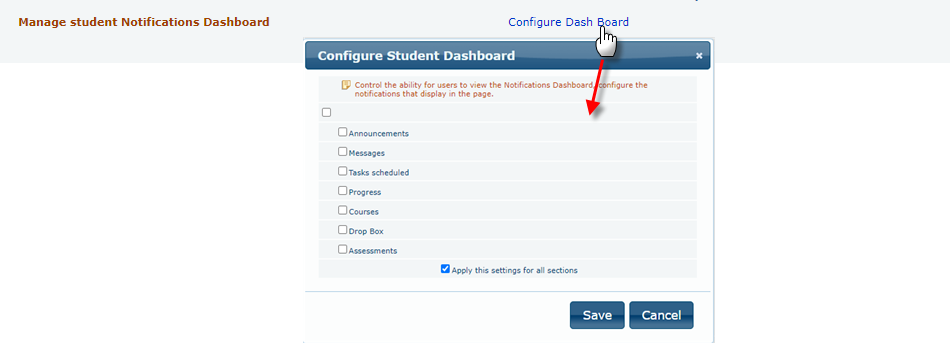
- Manage student Notifications Dashboard (Configure Dashboard): Control the ability for users to view the Notifications Dashboard and configure the notifications that display on the page. Users can control visibility for various categories, including Announcements, Messages, Scheduled Tasks, Progress, Courses, Dropbox, and Assessments. Additionally, these settings can be applied across all sections, ensuring consistent notification management.
- Office Hours: Instructors can set specific free time slots for availability to meet with students for the discussions, and this time will be displayed on the student accounts.
