
Assessment Settings Overview
The Assessment Settings section in Educosoft provides various options to customize assessment-related features. Here's a summary of the available settings:
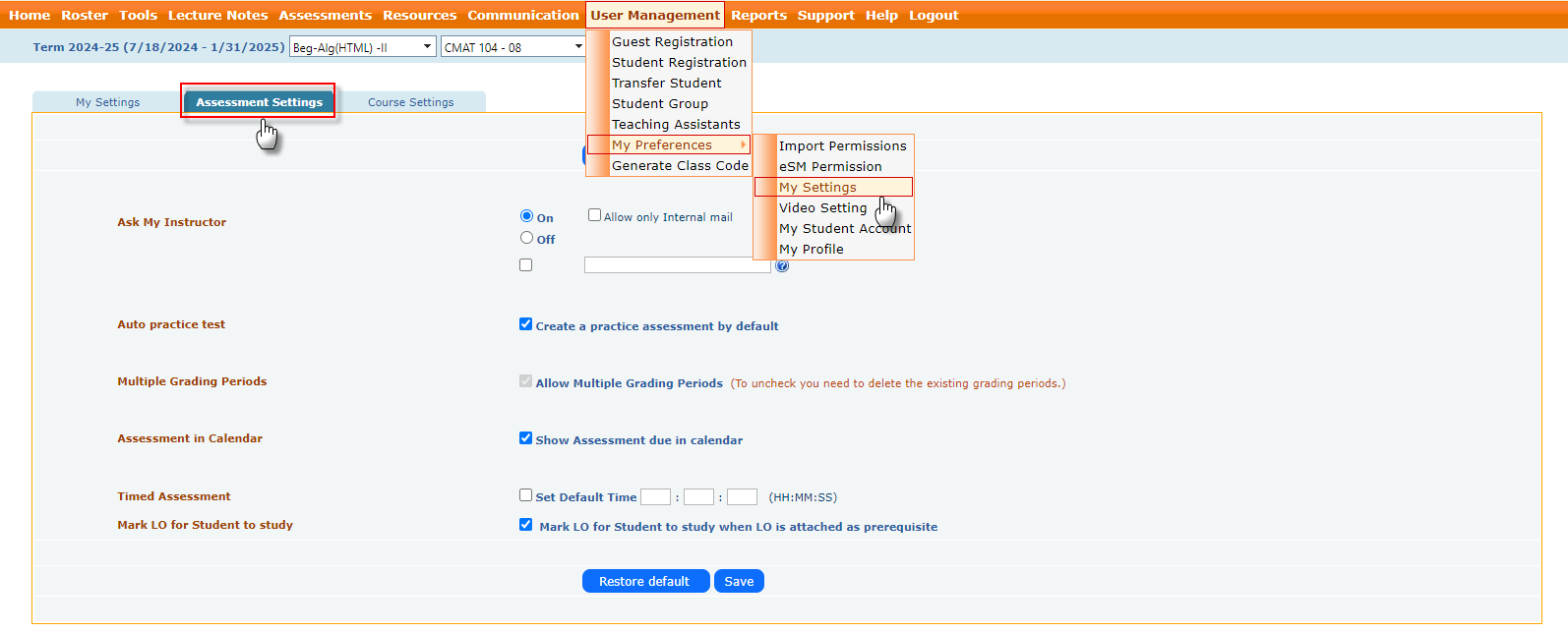
- Ask My Instructor (On/Off):
- Enable or disable the option for students to submit inquiries if they have questions while taking the assessment.
- Allow Only Internal Mail: With this option, instructors will receive only the internal messages submitted by students through 'Ask My Instructor,' while external emails will be omitted.

- Auto Practice Test (Create a Practice Assessment by Default): This option allows the instructor to automatically generate a practice assessment when creating an assessment for students, providing them with an opportunity to prepare for upcoming evaluations.

- Multiple Grading Periods (Allow Multiple Grading Periods): This option allows instructors to set multiple grading periods within the term/section, each with its own unique grade book per grading period, allowing for more tailored assessment and tracking of student performance.

- Assessment in Calendar (Show Assessment due in calendar): This option displays upcoming assessment due dates on the instructor's and Student home screen within the My Calendar section, allowing for easy tracking of important deadlines and task details.

- Timed Assessment (Set Default Time for Assessments): This option establishes a default duration for timed assessments during the assessment creation process, ensuring consistent time management across all evaluations. (formatted as HH:MM: SS).

- Mark LO for Student to Study (Mark LO for Student to Study when LO is attached as a prerequisite): Designate specific learning objectives as prerequisites for students, ensuring they are well-prepared before advancing in the course. Students can view the marked objectives in their lecture notes.

- Restore Default: The Restore Default button allows users to revert all preferences to their original default settings with a single click.