
Study Group Overview
The Study Group feature in EducoSoft provides a versatile way for instructors to create and manage groups for collaborative learning and communication. Here’s a breakdown of the main options available in the setup:
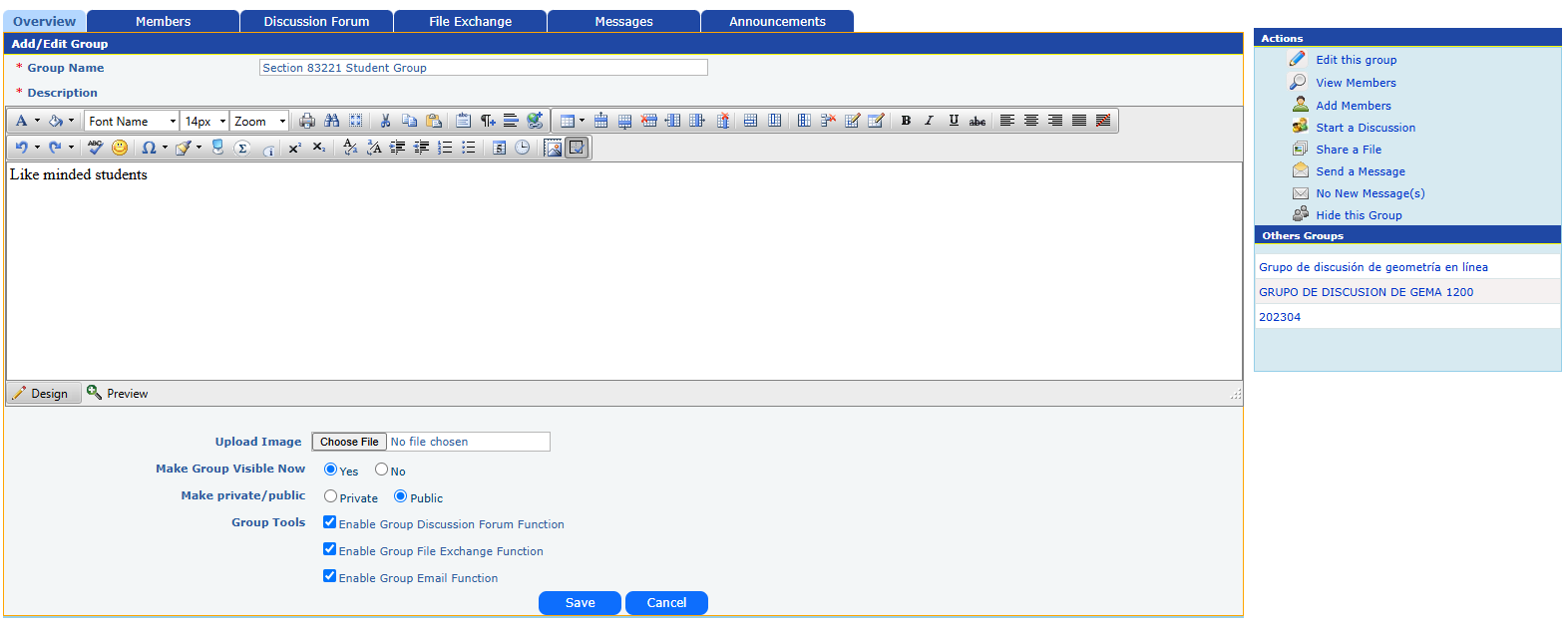
- Group Name and Description:
- Instructors can assign a name to the group and provide a description, such as indicating the group's purpose or characteristics.
- Group Visibility and Privacy:
- Make Group Visible Now: Instructors can make the group visible immediately to students or keep it hidden until later.
- Make Private/Public: Groups can be private (restricted to specific members) or public (visible to all course participants).
- Group Tools:
- Enable Group Discussion Forum Function: Allows group members to use a dedicated discussion forum, enhancing focused communication within the group.
- Enable Group File Exchange Function: This permits members to share files within the group, which is useful for collaborative projects and resources sharing.
- Enable Group Email Function: Enables group members to communicate via email, facilitating structured communication outside the platform.
- Actions Menu (right side panel):
- Options to edit the group, view or add members, start a discussion, share files, send messages, and manage the group's visibility.
- Hide this Group: This feature allows instructors to hide the group if needed.
- Tabs for Group Management:
- Overview: Provides a general view of the group’s setup.
- Members: Lists group members and offers management options.
- Discussion Forum: Allows discussions specific to the group.
- File Exchange: Facilitates file sharing among group members.
- Messages: Supports group messaging.
- Announcements: Allows instructors to post announcements that group members can view.
This feature supports flexible group-based activities, fostering collaboration and communication tailored to each group’s needs.