
Discussion Forum Overview
The Discussion Forum feature is designed to facilitate communication, collaboration, and knowledge sharing among students, Instructors, and other participants within a course or educational setting. Here's a detailed overview of how it works:
- Accessing the Forum:
- Login: Users typically need to log in to the platform using their credentials.
- Navigation: Once logged in, users can navigate to the "Discussion Forums" section from the main dashboard or menu.

- Header Navigation:

- My Forums: The main section where users can view and manage their forums.
- Add Forum: A button to create a new forum.
- Recent Threads: A link to view the most recent discussion threads.
- Recent Posts: A link to view the most recent posts in the forums.
- Search: A search bar to find specific threads or posts.
- Activity Report: A link to view activity reports.
- Complaints: A link to post complaints.
- Forum Scores: A link to view forum scores.
- Forum List:

- Forum List: Displays a list of available forums. Users can click on the forum name to see the list of threads within that forum.
- Filter Options:
- Term Status: Dropdown to filter forums by term status (e.g., All Terms).
- Term: Dropdown to select a specific term (e.g., Fall 2024).
- Course: Dropdown to select a specific course.
- Section: Dropdown to select a specific section.
- Forum Details:
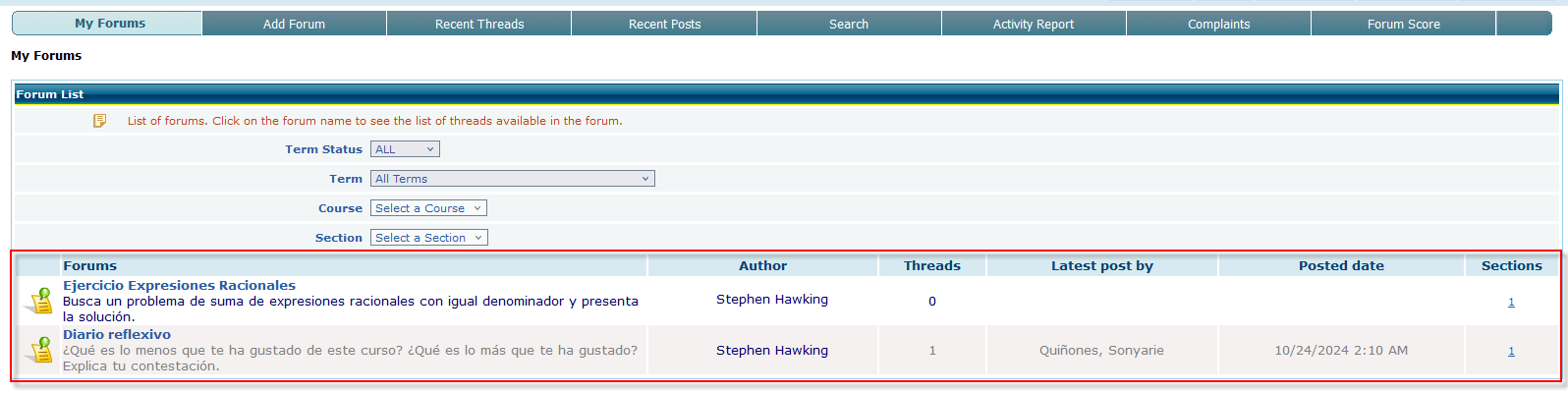
- Forum Name: Displays the name of the forum.
- Description: Provides a brief description of the forum's purpose.
- Author: Lists the author of the forum.
- Threads: Indicates the number of threads in the forum.
- Latest Post By: Shows the author of the most recent post.
- Posted Date: Displays the date and time of the latest post.
- Sections: Indicates the sections associated with the forum.
- Creating a Forum:
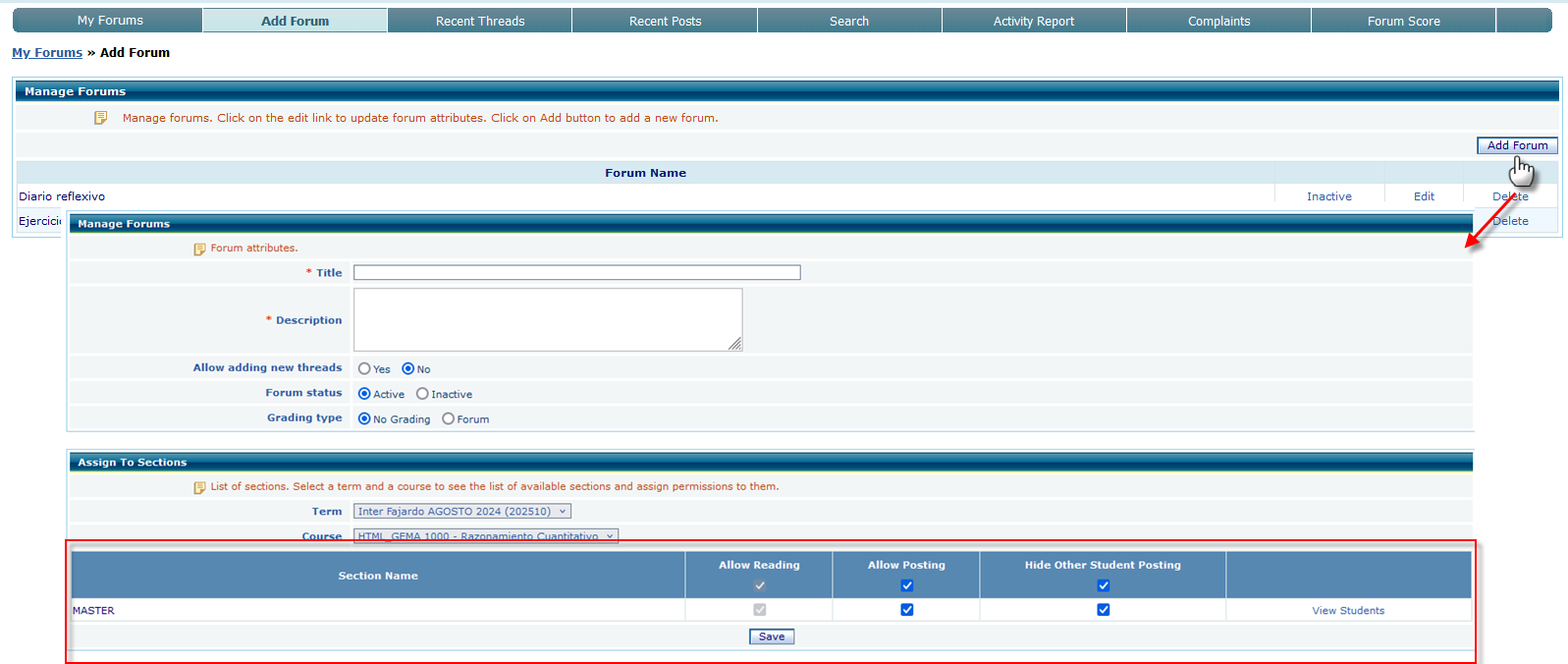
- Add Forum: Instructors or administrators can create new forums by clicking the "Add Forum" button. They need to provide a name, description, and specify the course, term, and section(s) the forum will be associated with.
- Assign To Section: List of sections. Select a term and a course to see the list of available sections and assign permissions to them.
- Permissions: Forum creators can set permissions to control who can view, post, or moderate the forum.
- Creating Threads:
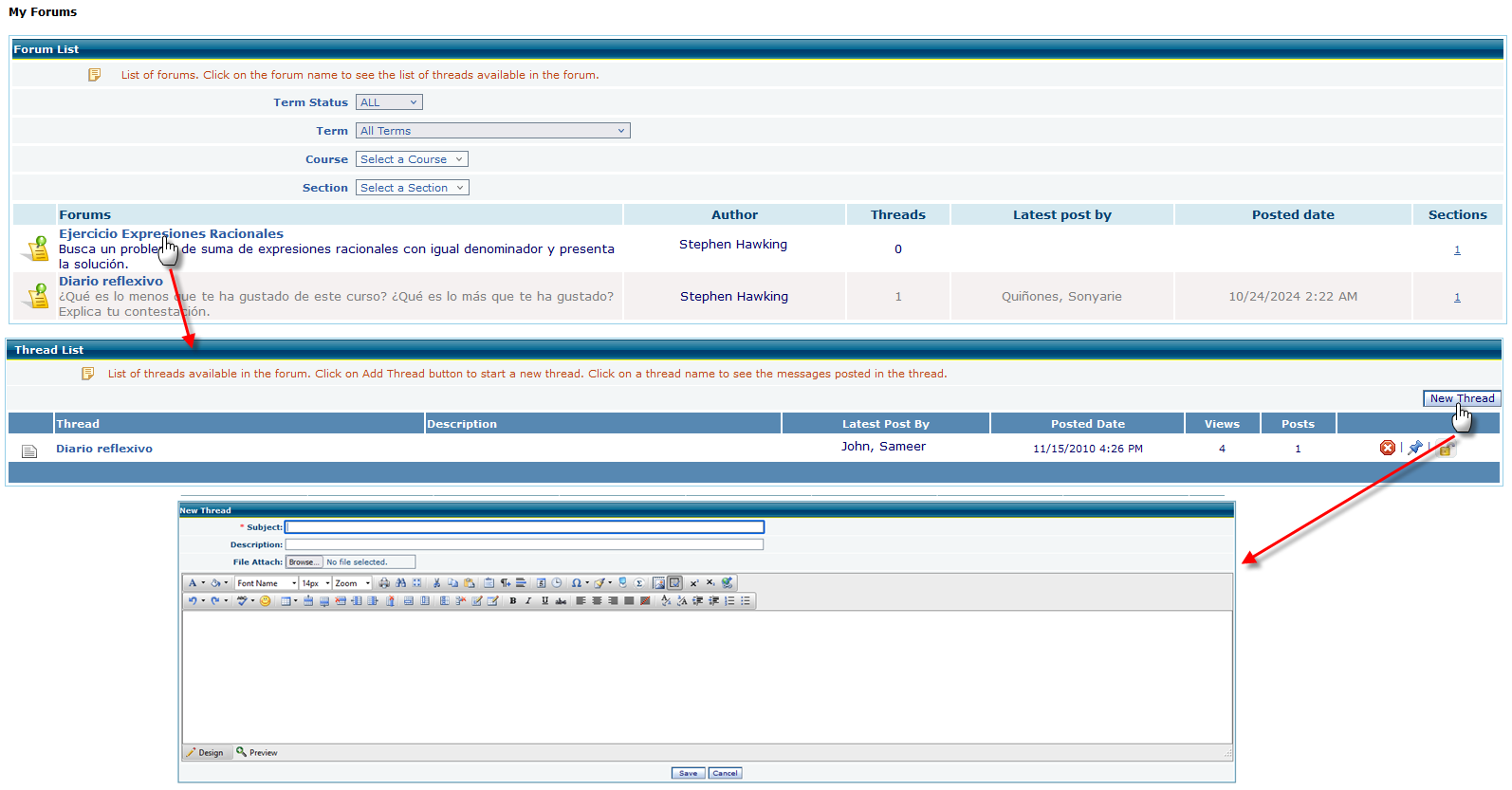
- Start a Thread: Users can start a new discussion thread within a forum by clicking a forum Title and then on Add Thread button.
- Thread Title and Content: Users need to provide a Title and Content for the thread, which can include text and attachments.
- Participating in Threads:
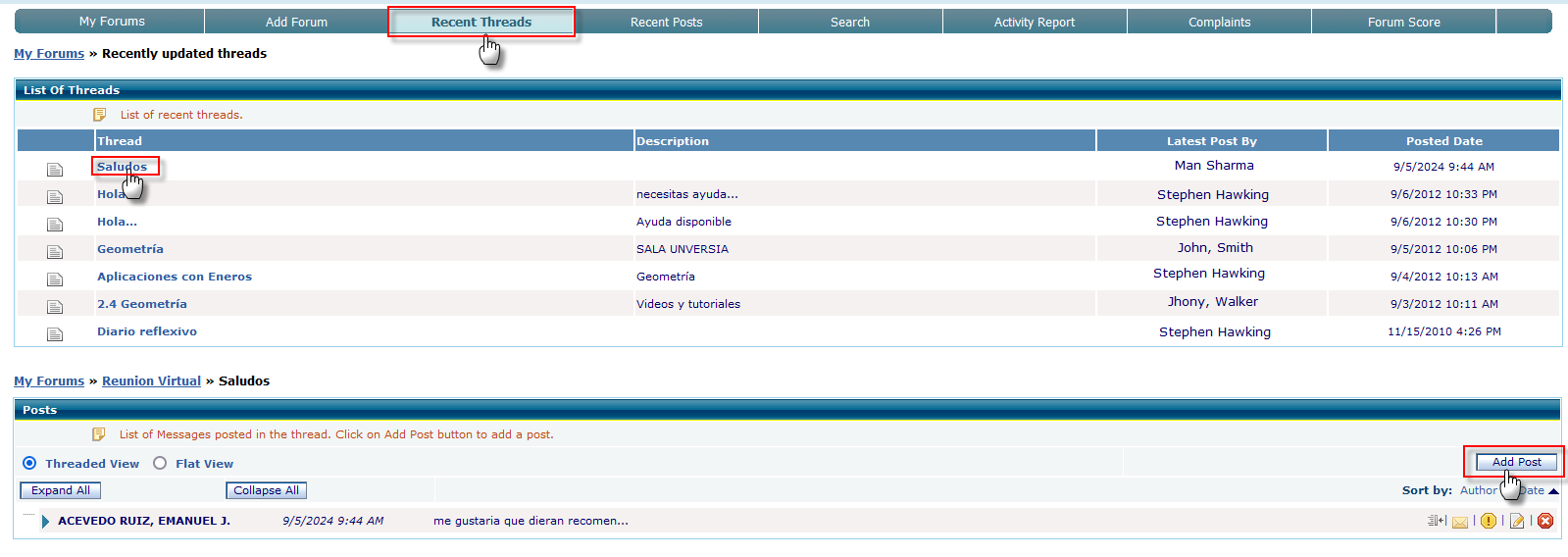
- View Threads: Users can browse through existing threads within a forum.
- Reply to Threads: Users can reply to existing posts, contributing to the discussion.
- Attachments: Users can attach files (documents or images) to their posts.
- Managing Threads:

- Moderation: Forum moderators or instructors can manage threads by deleting inappropriate posts, locking threads, or moving them to different forums.
- Pins and Highlights: Moderators can pin important threads to the top or highlight them for better visibility.
- Search and Filter:
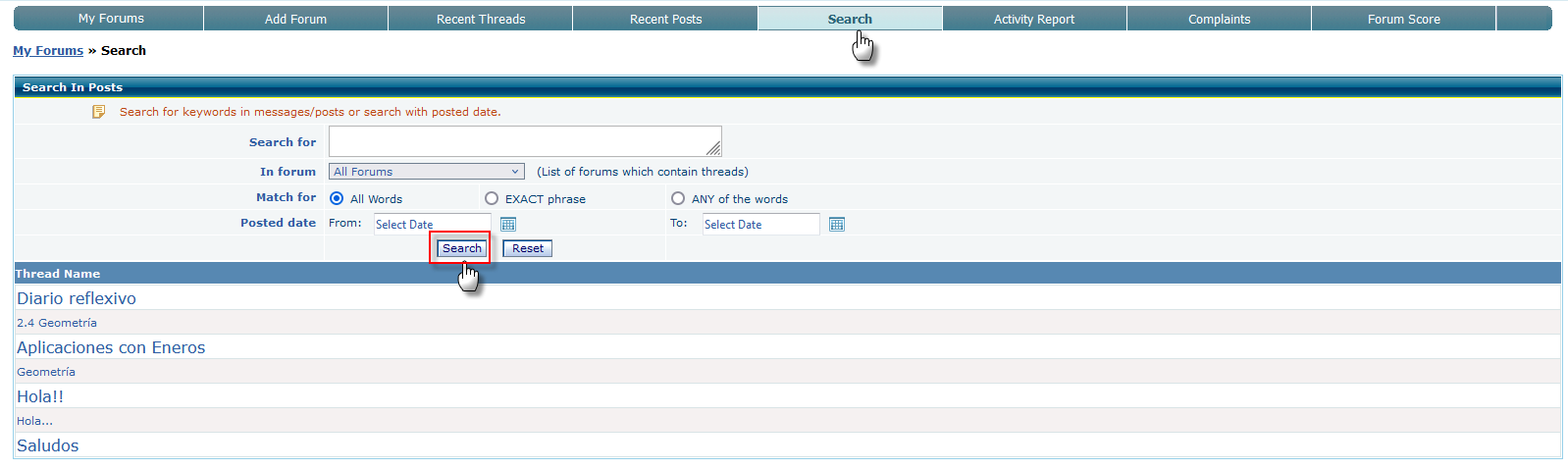
- Search Functionality: Users can use the search bar to find specific threads or posts.
- Filter Options: Users can filter forums by term, course, and section to find relevant discussions quickly.
- Activity Reports:
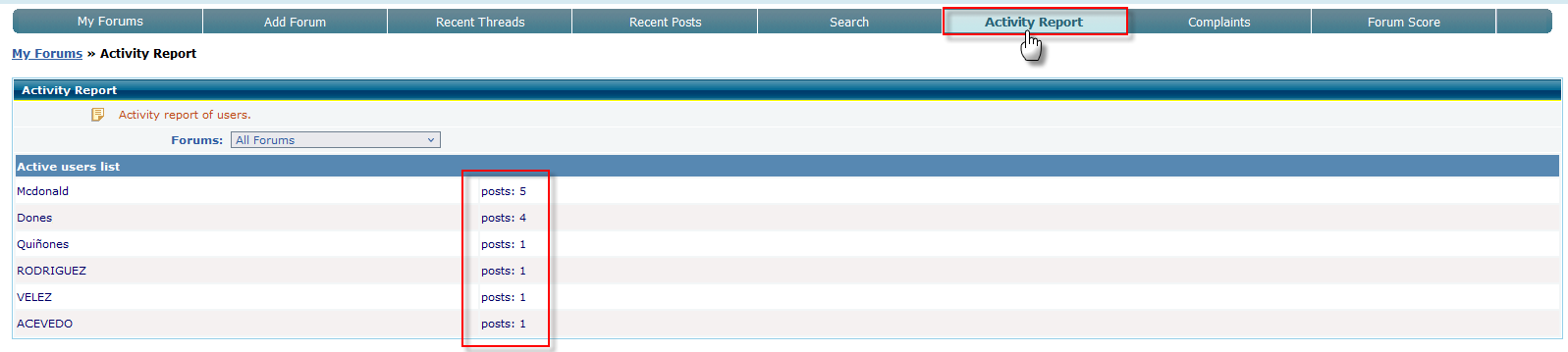
- Reports: Instructors and administrators can generate activity reports to monitor forum usage, participation, and engagement.
- Scores:
- Forum Scores: Instructors can assign scores to forums based on participation and quality of discussions.
EducoSoft's discussion forum is a comprehensive tool for fostering interactive learning and communication within an educational setting. It supports a wide range of activities, from starting and participating in discussions to managing and moderating forums, all while ensuring user privacy and data security.