
Video Settings Overview
- Login as Instructor and go to User Management > My Preferences > Video Setting.

- User will be taken to the following screen.
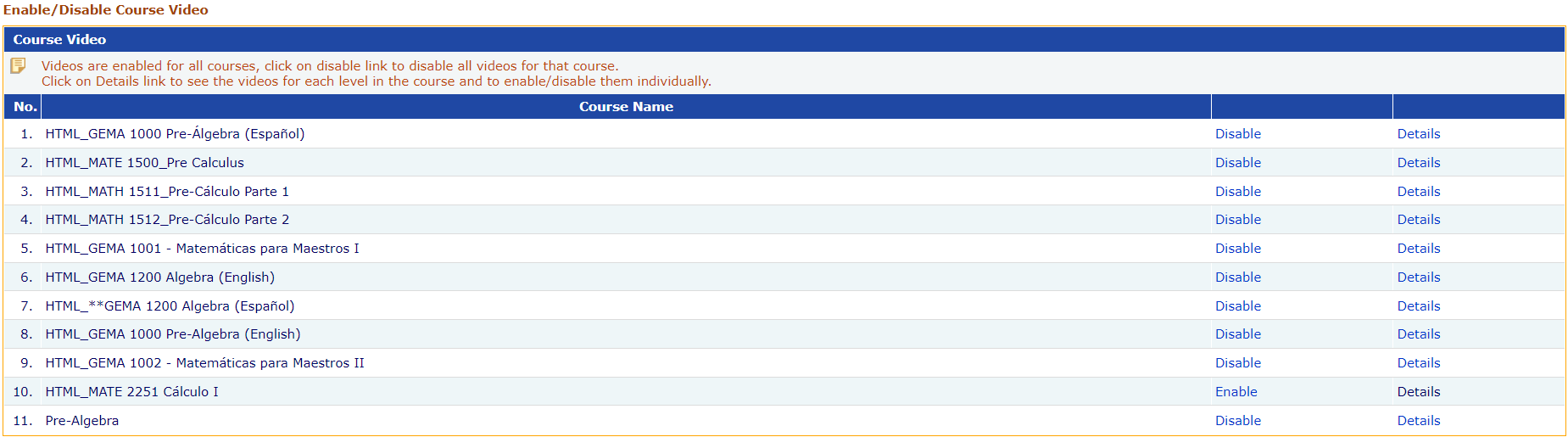
- Click on the 'Disable' link for a specific course to turn off all videos in that course for the students.
- Click on the 'Enable' link for a specific course to turn on all videos in that course for the students.
- Click on the ‘Details’ link to see the videos for each level in the course and to enable/disable them individually.
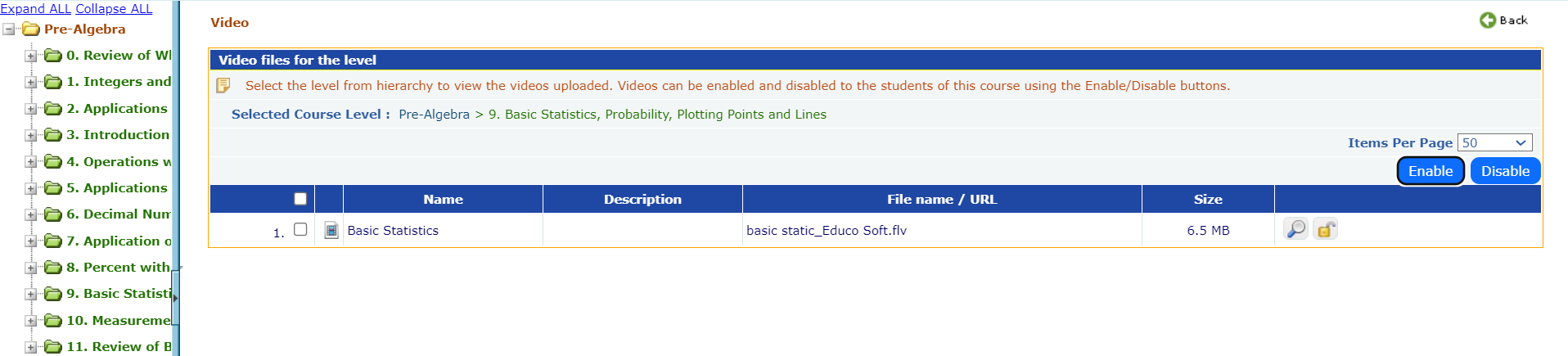
- Select a level in the course, and the corresponding videos will be listed.
- Select the videos and click the ‘Disable’ button to disable the videos.
- Select the videos and click the ‘Enable’ button to enable the videos.
- To enable/disable individual videos, use the lock icon.
Note: Once the videos are disabled for the level/course, students will no longer see the icon, preventing them from accessing them altogether.