
Course Settings Overview
The Course Settings section in EducoSoft provides various options to customize course-related features. Here's a summary of the available settings:
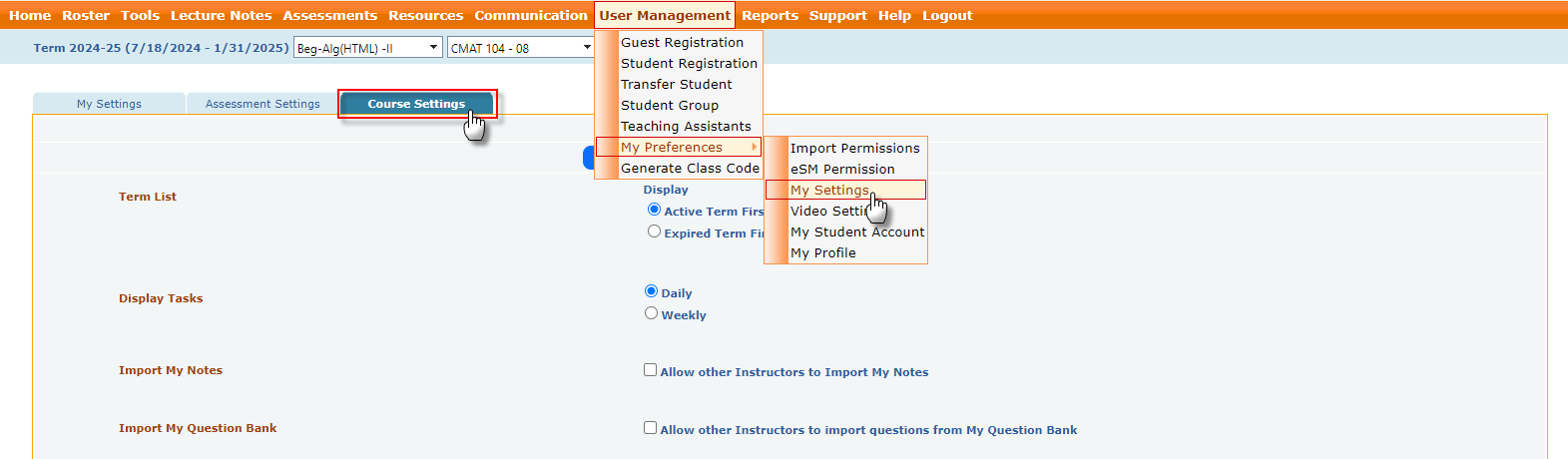
- Term List (Display Options): Display active or expired terms first on the instructor's home screen, providing customizable viewing preferences.

- Display Tasks (Daily / Weekly): This option determines whether tasks are displayed daily or weekly, enabling instructors to manage their schedules effectively and stay organized.

- Import My Notes (Allow other Instructors to Import My Notes): This option enable other instructors to import your notes, fostering collaboration and sharing of resources within the institution.

- Import My Question Bank (Allow other Instructors to import questions from My Question Bank): Permit other instructors to import questions from your question bank, enhancing resource sharing for assessments within the institution.

- Attendance (Show dropped students in attendance setting): This option will include the attendance information of the dropped students in the attendance markin/ report options.

- Drop Student Message: This option customizes the message that will be sent to students when they are dropped from the section, ensuring clear communication.

- Include e-Book Time Spent (Include e-book time spent in activity report): Incorporate the time spent on e-books into activity reports, offering a comprehensive view of student engagement.

- Course/Section Dropdown (Show course and section in dropdown): Show courses and sections in a dropdown list for easy navigation and selection for instructor.

- Change Section Order (Show tabbed view for expired & active terms and allow section re-order on the home page): Present active and expired terms in a tabbed view, allowing instructors to reorder sections on the homepage for better organization.

- Tutorial Date Marking (Show tutorial date marking after end date): This option displays marking for tutorial dates after the end date, helping instructors keep track of past sessions.

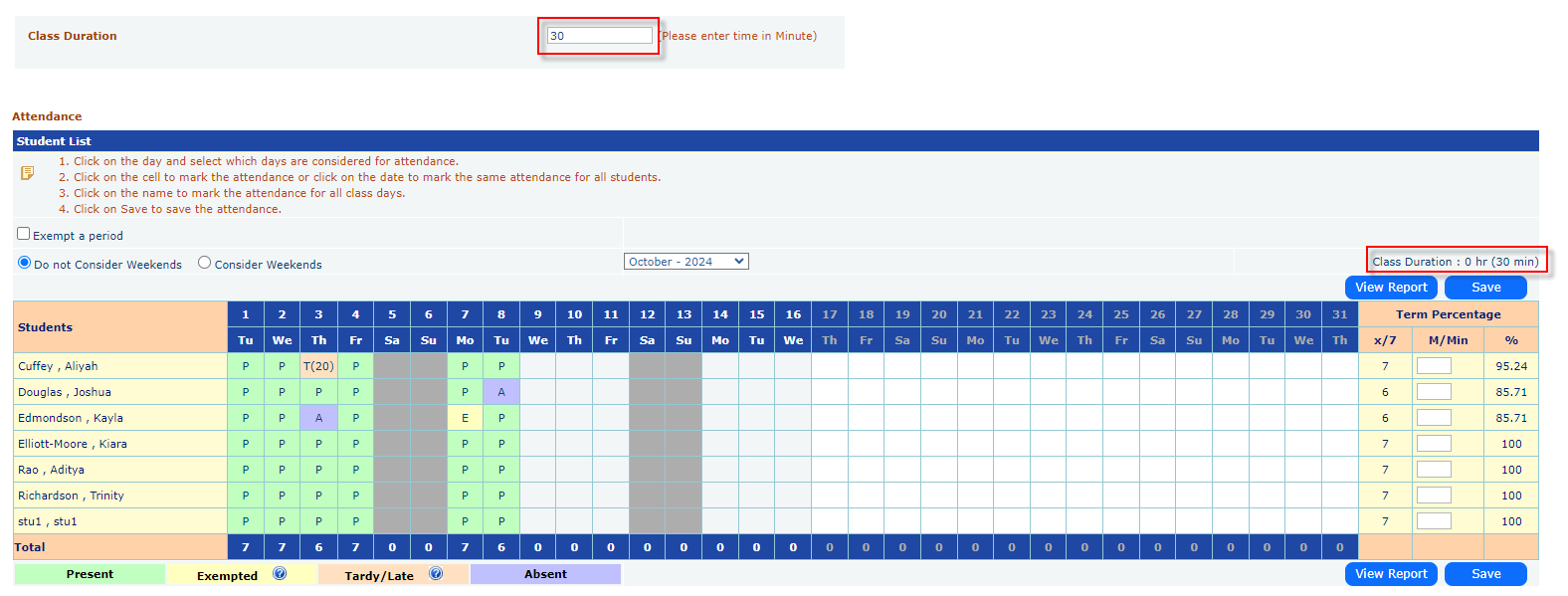
- Class Duration: Specify the class duration in minutes to facilitate accurate lesson scheduling; this duration will be displayed in the class attendance.
- Drop Student Option:
- Drop student if absent for a number of days: Set the number of days to automatically drop students from the section(s) who are absent for a specified number of days.
- Send warning message if the student is absent for a number of days: Set the number of days for automatically sending warning messages when students exceed a specified absence threshold.

- Show notification on roster if student is not logged in for number of days: Specify the number of days after which notifications will appear on the instructor roster screen next to a student's email if they have not logged in. This will assist instructors in monitoring student engagement.

- Restore Default: The Restore Default button allows users to revert all preferences back to their original default settings with a single click.