
Add/Edit Attendance Category
In the Add/Edit Attendance Category section, instructors can assign a weight to attendance and define how tardies and attendance percentages translate into scores. Here's how it works:

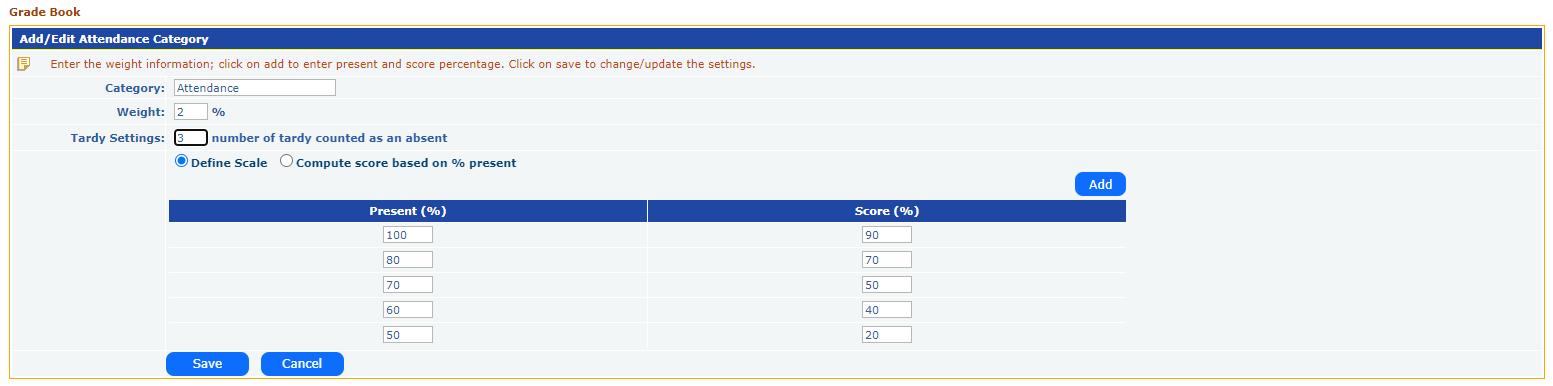
- Category Information:
- Category Name: This field is labeled as "Attendance" by default.
- Weight (%): Instructors can assign a specific weight to attendance (e.g., 2% of the total grade).
- Tardy Settings:
- Tardy Count: You can specify how many tardies equal one absence. For example, setting it to "3" means that three instances of being tardy will be equivalent to one absence.
- Score Calculation Options: Instructors can choose how to calculate the score based on attendance:
- Define Scale: Manually enter percentages for attendance and map them to corresponding scores.
- For example:
- 100% Present = 90% Score
- 80% Present = 70% Score
- 70% Present = 50% Score
- 60% Present = 40% Score
- 50% Present = 20% Score
- Compute score based on % present: This option automatically calculates the score based on the percentage of days present without manually entering specific percentages.
Add and Save:
- After entering the required information, click Add to finalize the settings.
- Clicking Save will update the grade book with the attendance category and its associated weight and scoring rules.
This system ensures that student attendance contributes to their overall performance in the course, and instructors can adjust how absences and tardies affect the final grade.