
Creating Dropbox Assignment
- On the Dropbox Assignment listing page click on ‘Add Assignment’.
- User would be taken to the following screen.
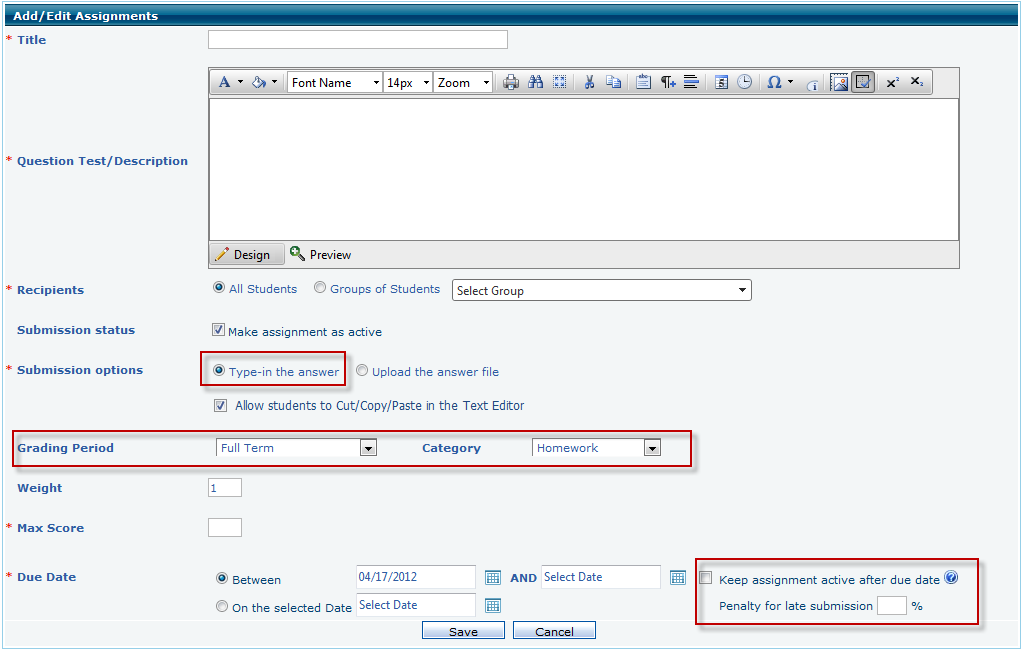
- Enter the Assignment title and Question Text.
- Determine the recipients.
- In the ‘Submission options’ select the first option. ‘Type-in the answer’. An option appears to allow students to cut/copy/paste in the editor, check the box to allow or leave unchecked to disallow.
- Select the grading period and assign the category to the assignment (Note: Grading Period/Category selection is not mandatory).
- Enter the Max Score for the Assignment.
- Enter a Due Date for the Assignment by using the Date fields.
- User can keep the assignment active even after due date with a penalty in score, check the option “keep assignment active after due date” and enter the %score to be penalized for late submission on the evaluated total score for assignment.
- Click Save to save the assignment.
Answering Assignment from Student Login:
- Go to Dropbox Assignment list page as shown in the below image.
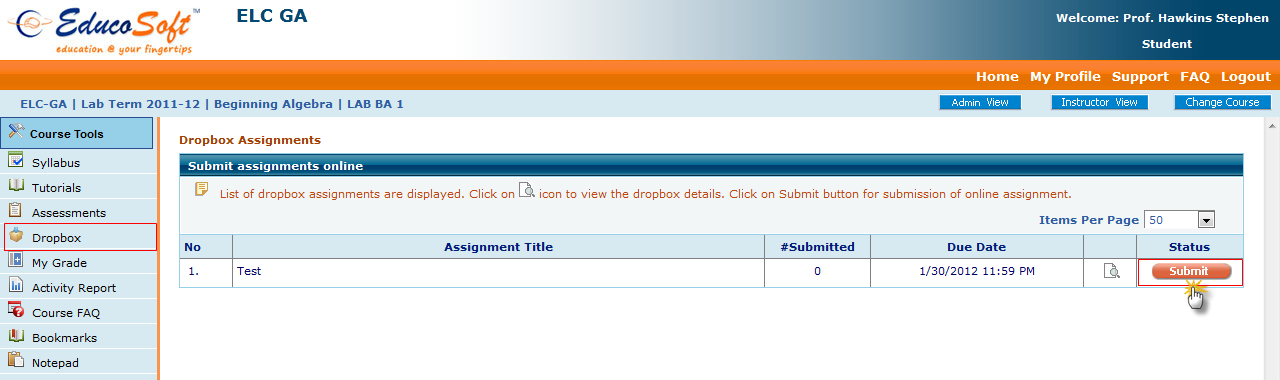
- Click on ‘Submit’ button.
- User will be taken to the following screen.
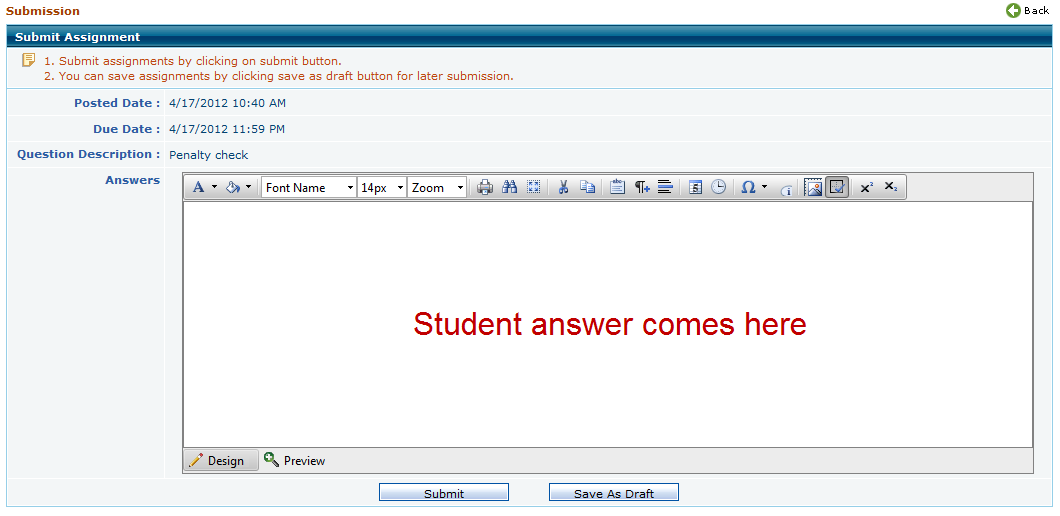
- Enter the answer in the Text Editor and click on ‘Submit’ button for submission.
Note: For Students Copy and Paste functionality is disabled inside the editor based on the Instructor assignment settings.
Grading Submitted Assignment from Instructor Login:
From the Dropbox Assignment listing page click on ‘Grade’ button corresponding to the Assignment title.
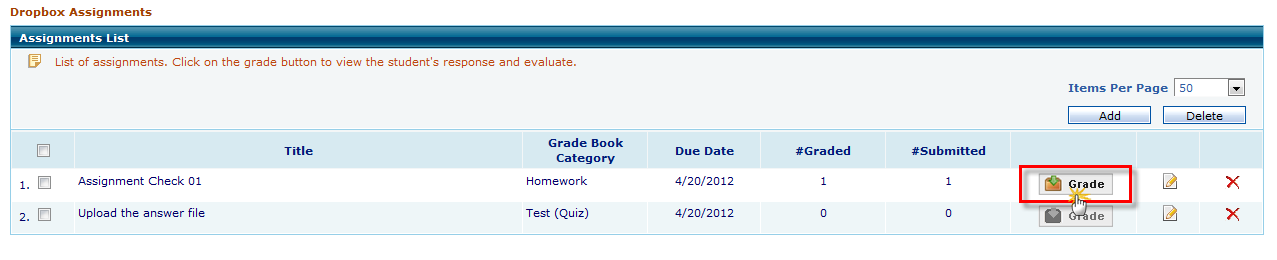
- User will be taken to the following screen.
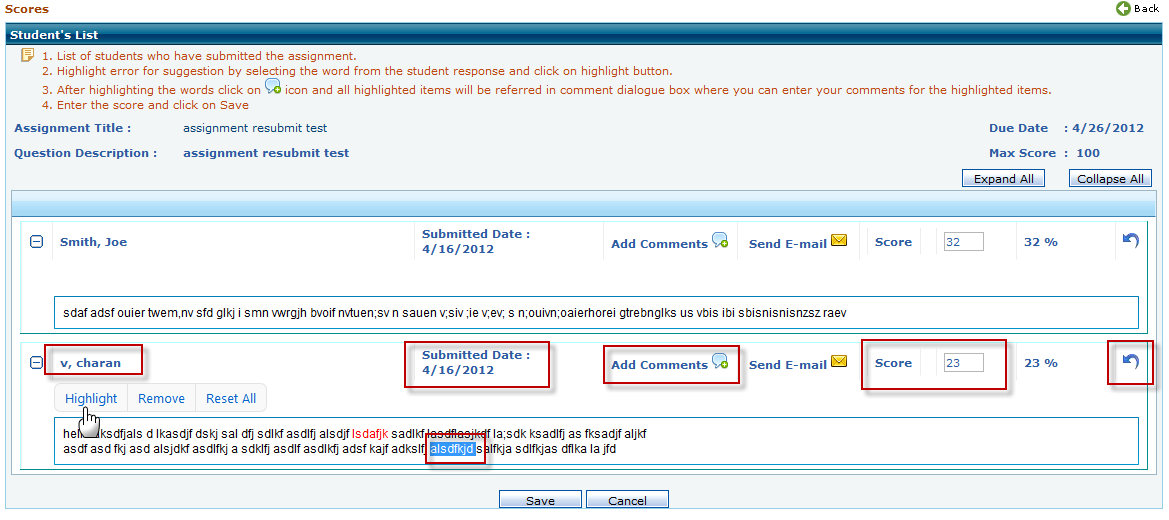
- All submitted assignments will be listed with the student name, submitted date information with an option to collapse or expand each answer.
- Click on Add comments
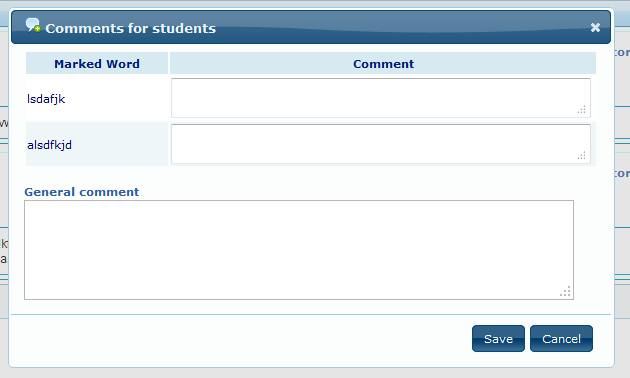
 button to add comments on student’s response or select a word in the answer click on highlight button and then click Add Comments icon to add comments for highlighted words correspondingly or a general comment too in the popup.
- Click on email
 icon to send an email to student.
 - After evaluation enter the score in the text box provided for score.
- If instructor wants the student to resubmit the assessment, click the
 icon at the right end to void the answer from a particular student and allow the student to resubmit. Enter a comment in the popup which will be shown to the student while he retakes the assignment.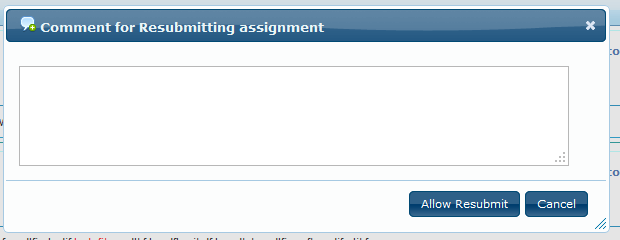
- Click on Allow Resubmit button to save.
Seeing Result from student login after Evaluation:
- Go to Drop box Assignment list page as shown in the below image.
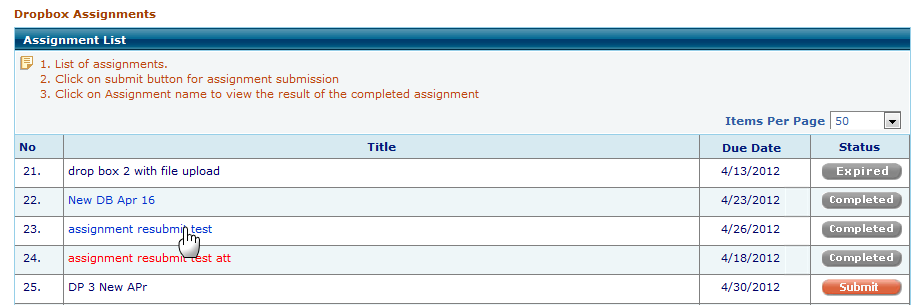
- Assignment shown in red is pending for evaluation.
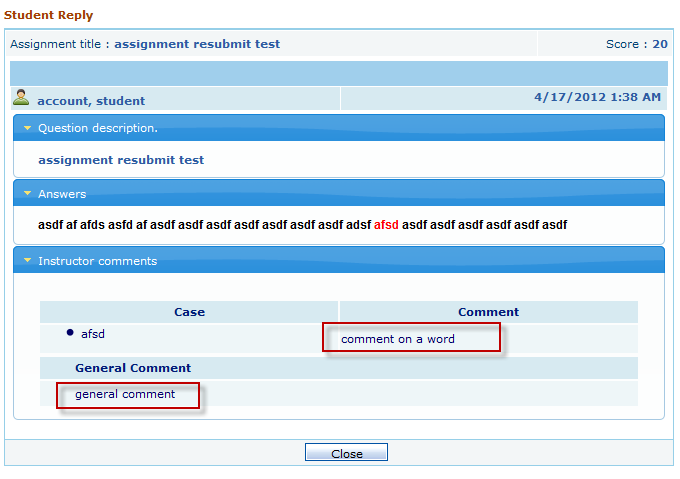
- Assignment in blue are evaluated and on click of the Assignment Title to see the details.
- Student will be taken to the following screen.
Assignment Resubmission:
If instructor allows the student to resubmit the assignment, resubmit button is shown to the student for that particular assignment.

On click of Resubmit, the student will get the submission screen of the assignment with the previous entered answer or previous attached files, with option to edit the answer and resubmit.