
Score Management, Max Attempt Adjustment, and Assessment Date Extension
Editing Scores:
- For an Individual Student:
- Go to the Roster page and click on the student’s name.
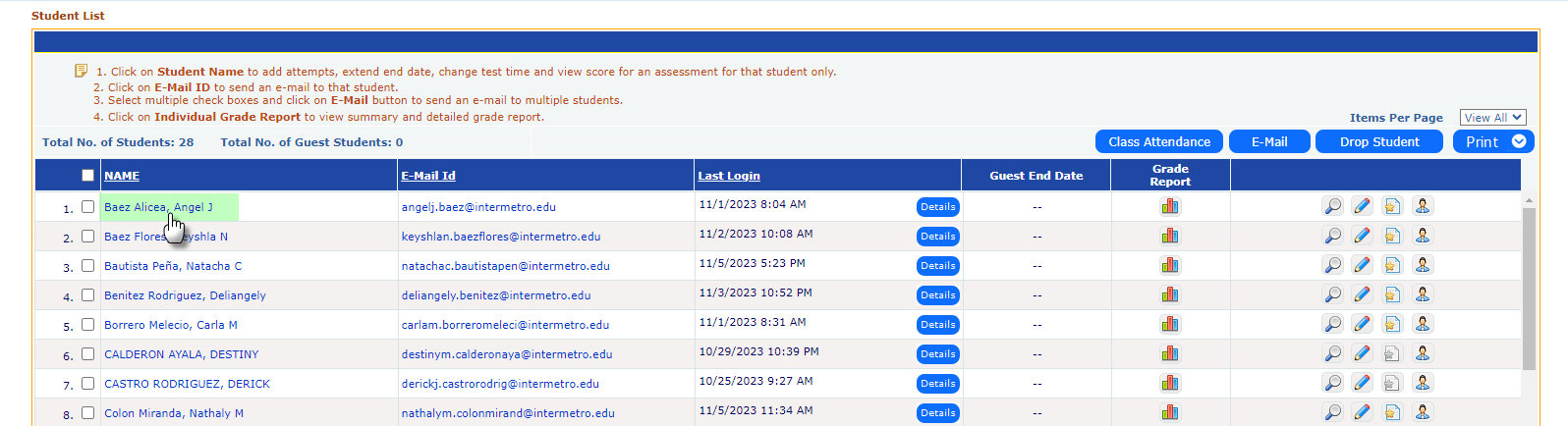
- This will take you to the student’s record page, where you can view and edit assessment details such as:
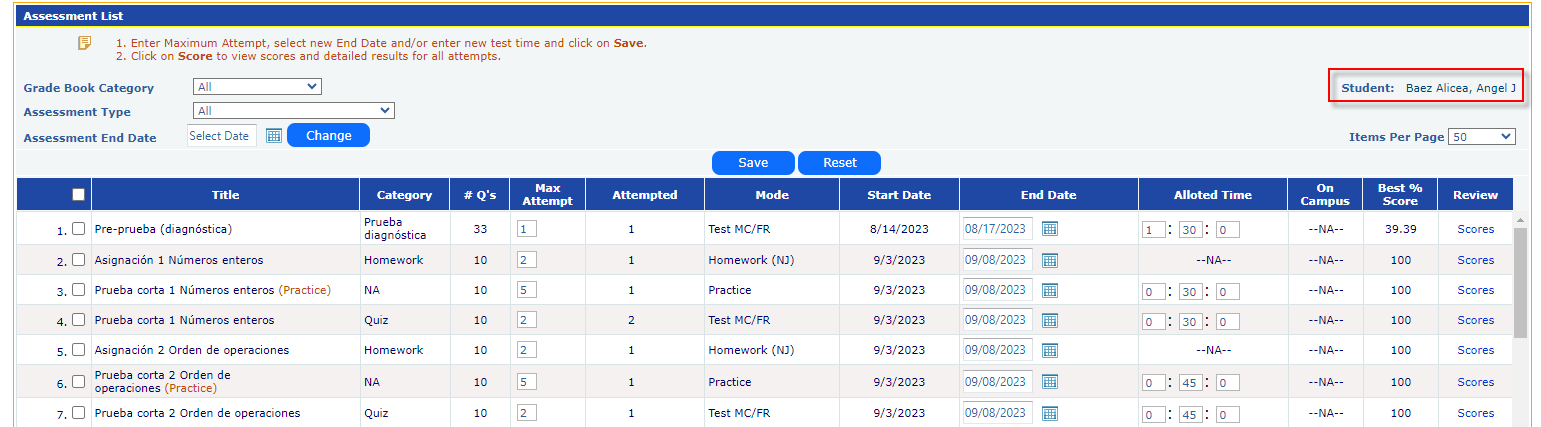
- Max Attempts: Update if permitted by the Course Coordinator, then click Save.

- End Date: Click the calendar icon, select a new end date, and click Save.

- Alloted Time: Click on the Time text box and enter a new Time for the desired assessment.

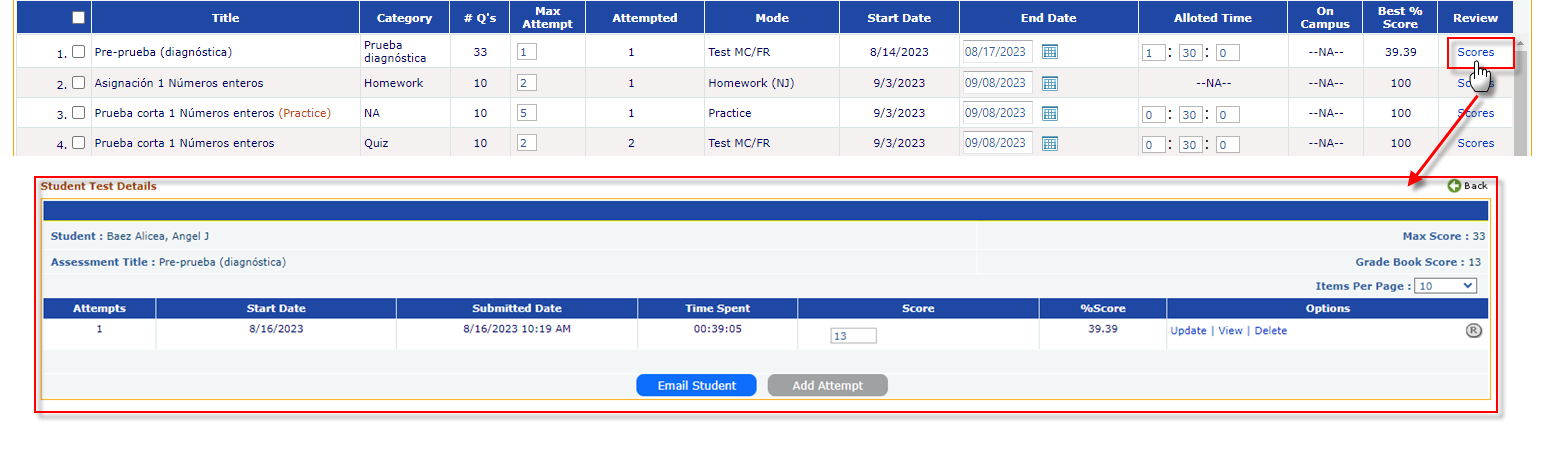
- Score: Click on the Score link, update the score field, and click Update. You can also review the student’s responses before making changes.
- For the Entire Class:
- Go to Assessments > View/Create and click the Score button.
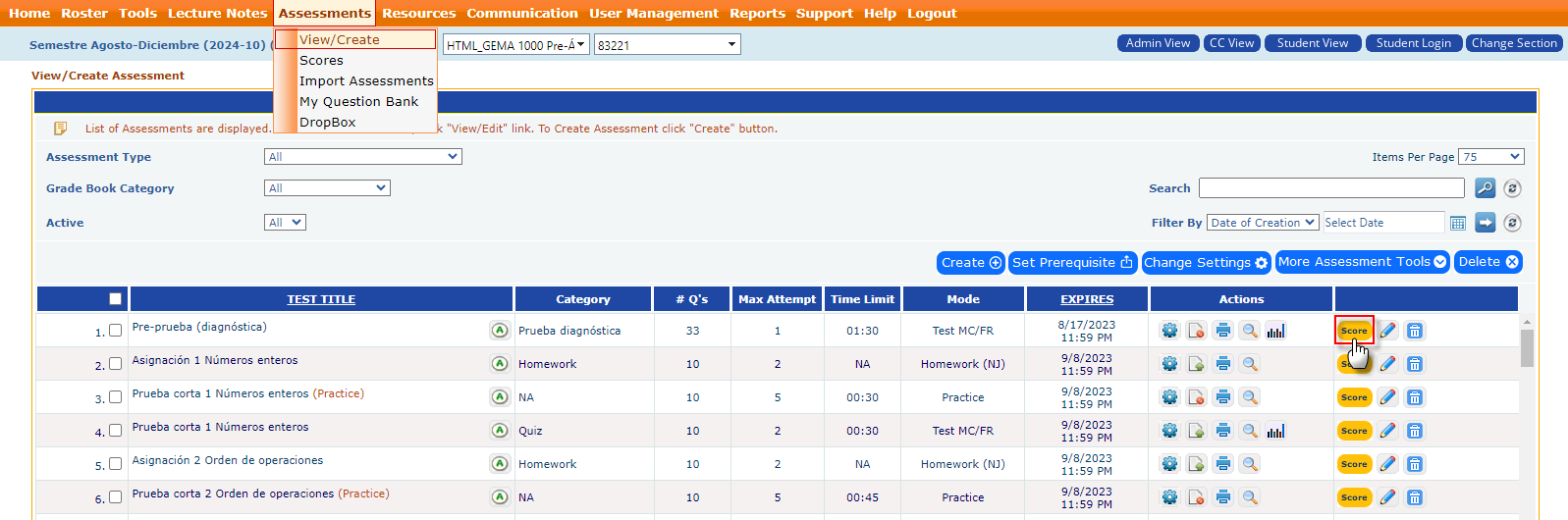
- This will display the scores for all students in that assessment.
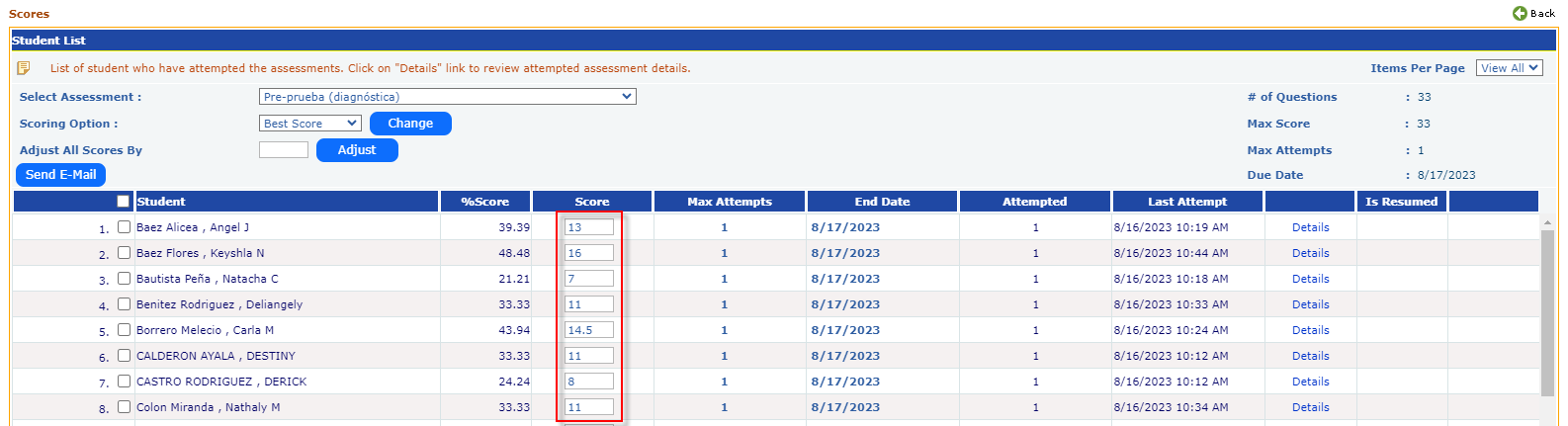
- Make the necessary adjustments and click Save to update the scores.
Note: You can send an email to the students who did not take the assessment or got a bad score and may be advised to retake. Select the checkbox for those students and click on Send Internal Mail button to send them an email.