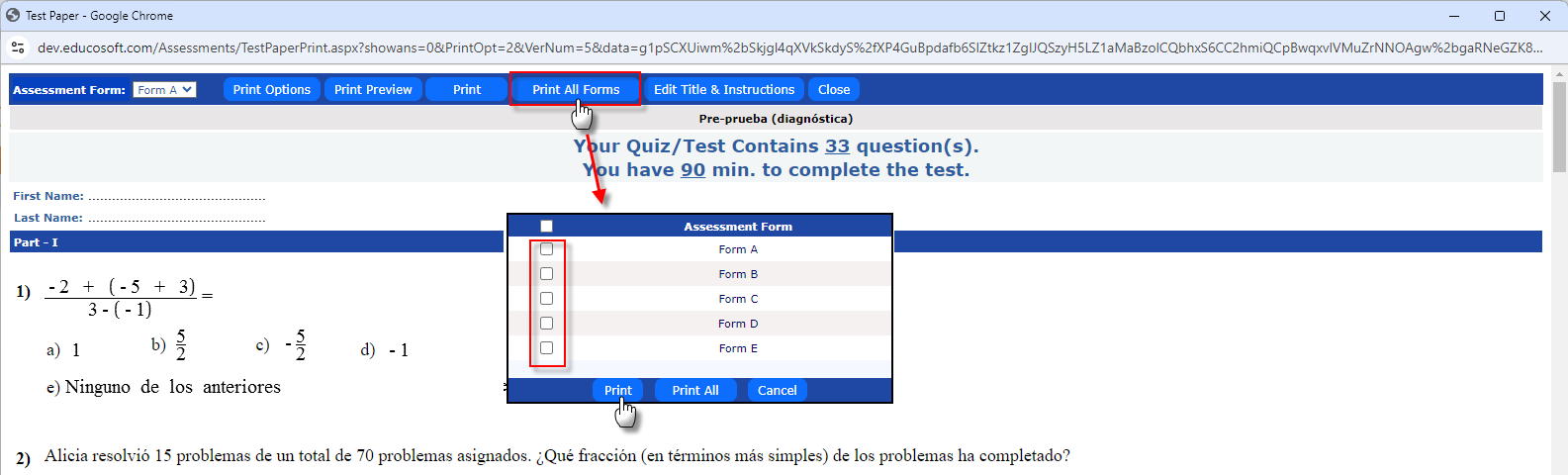
Printing Assessments
- Access the Assessment List:
- Navigate to Assessments > View/Create to view the list of available assessments.
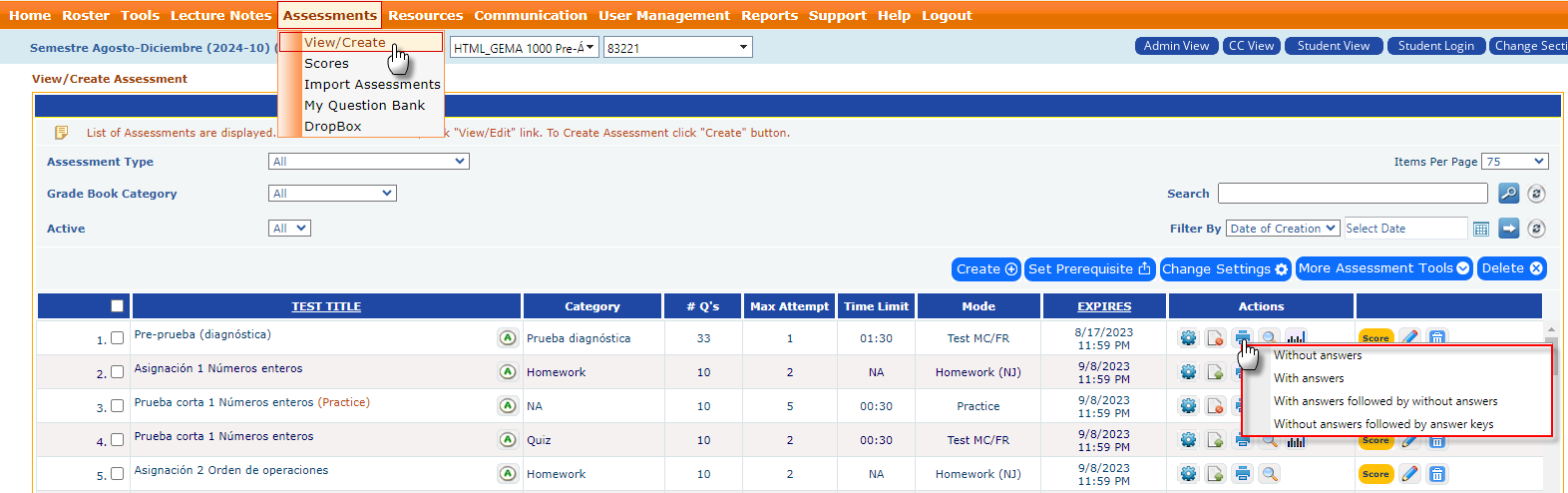
- Choose the Assessment to Print:
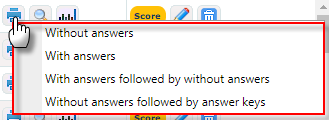
- Click the print button for the specific assessment you wish to print. A popup menu will appear—showing the following options
- Without Answers.
- With Answers.
- With Answer followed by without answer
- Without Answer followed by without answer
- Print Options Page:
A new window will open with various print settings and options.
- Print the Test: Click on the Print button to generate a PDF of the test, which you can then save or print.
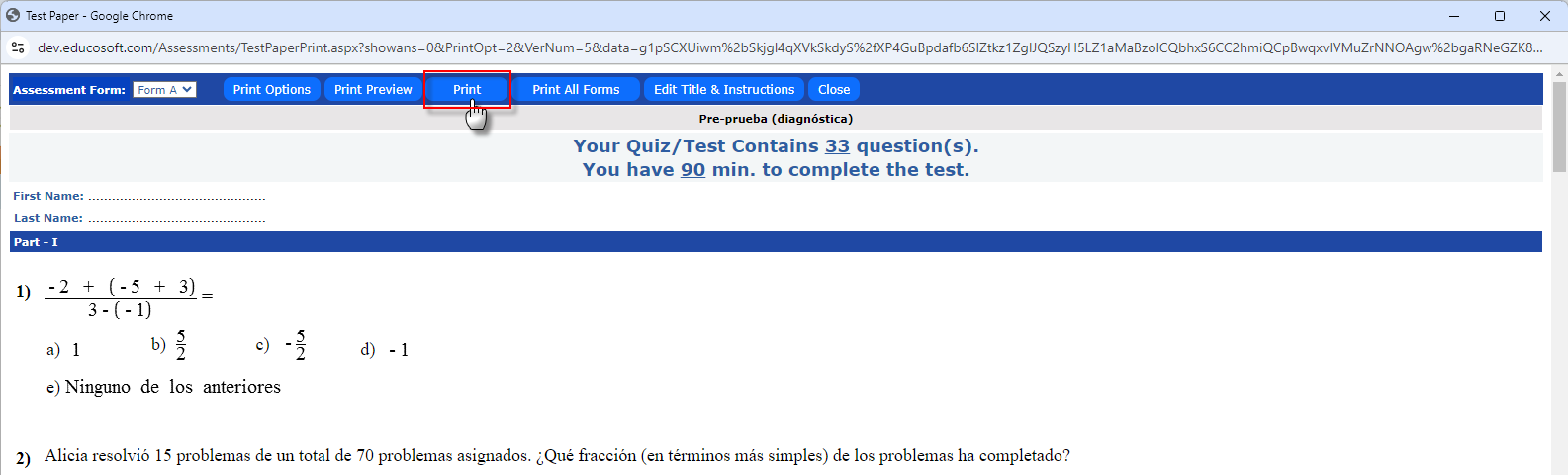
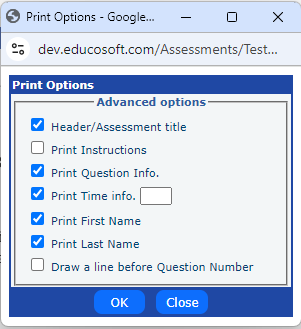
- Customize Print Options: Click on the Print Option button for advanced settings, which will be displayed at the top of the test.
- Select a Test Form: Use the dropdown menu at the top to choose from different test forms (e.g., Form B, Form C) as needed.