
Student Group Overview
Student groups facilitate collaborative work, allowing students to collaborate, share resources, and enhance learning through teamwork. By organizing students into groups, instructors can promote engagement, foster communication, and streamline group assignments, making it easier for students to collaborate effectively.
Manage User Group(s):
- Login to the instructor account and go to User Management > Student Group.

- The user will be taken to the following screen.

- Click on ‘Add Group’ button to create a User Group.
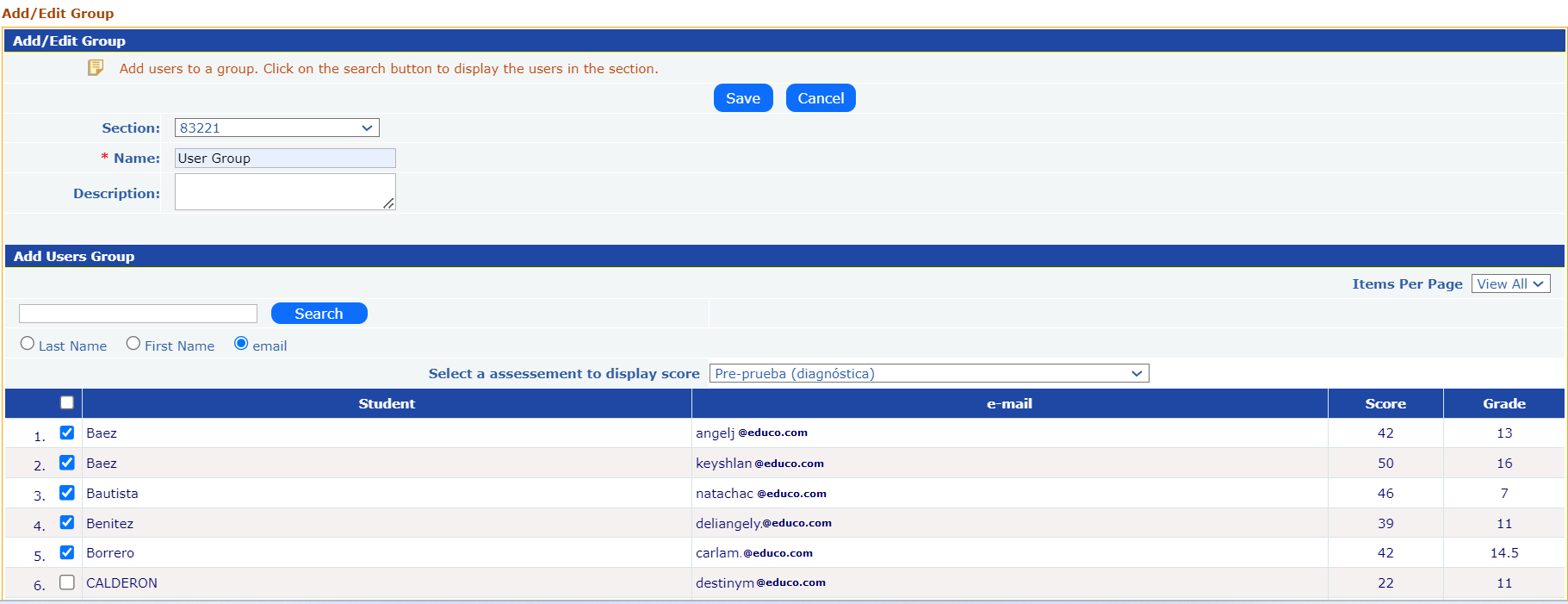
- Section Selection: Select the section from the section dropdown. On page load, it will list all the users in that section.
- Alternatively, search the users with the Last Name/First Name/ Email ID and Select the users you want to add to the group.
- Group Details: Enter the group name and description.
- Assessment Selection: Choose an assessment to view the scores and grades next to each student.
- User Selection: Select the users you want to add to the group.
- Save Group: Click the "Save" button to create the group and tag the selected users. The user will be taken to the following screen.

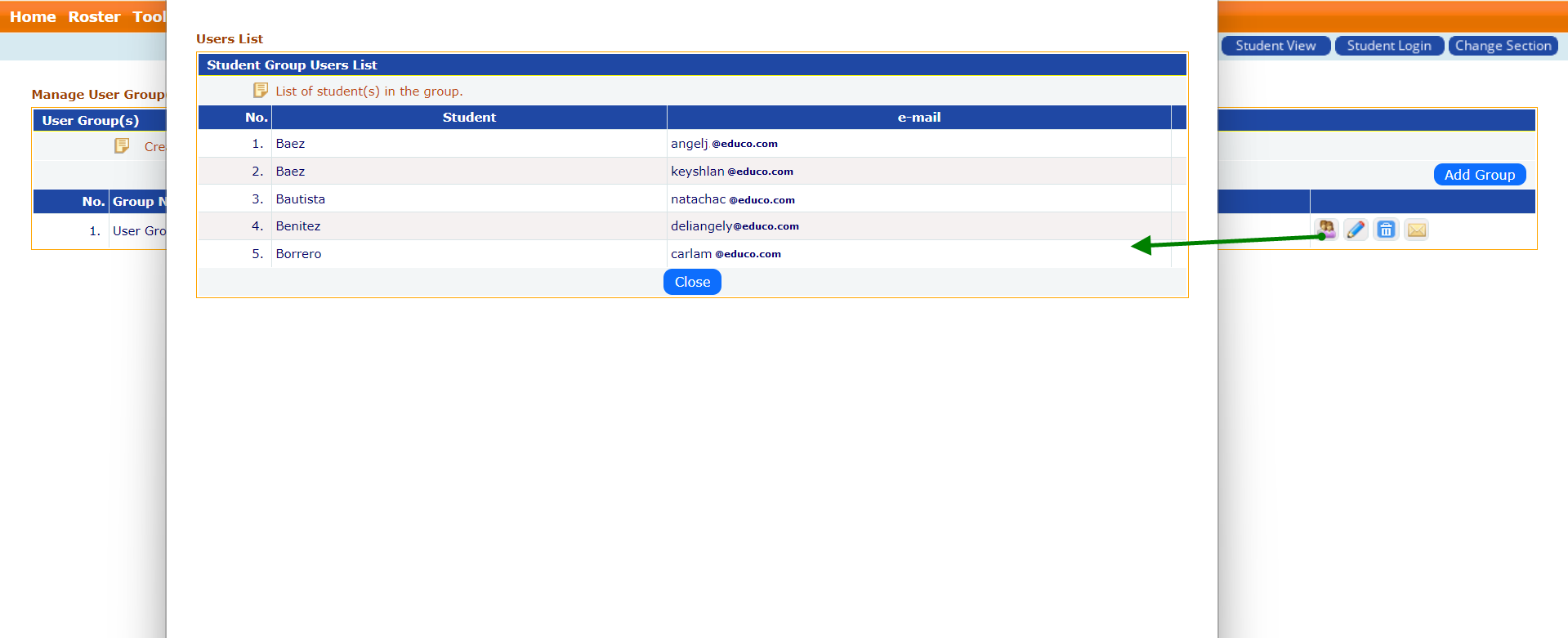
- View Students in the Group: Click on view students
 icon to view the students in the group.
- Edit Student Group: Click on the edit
 icon to modify the group and make the necessary changes.
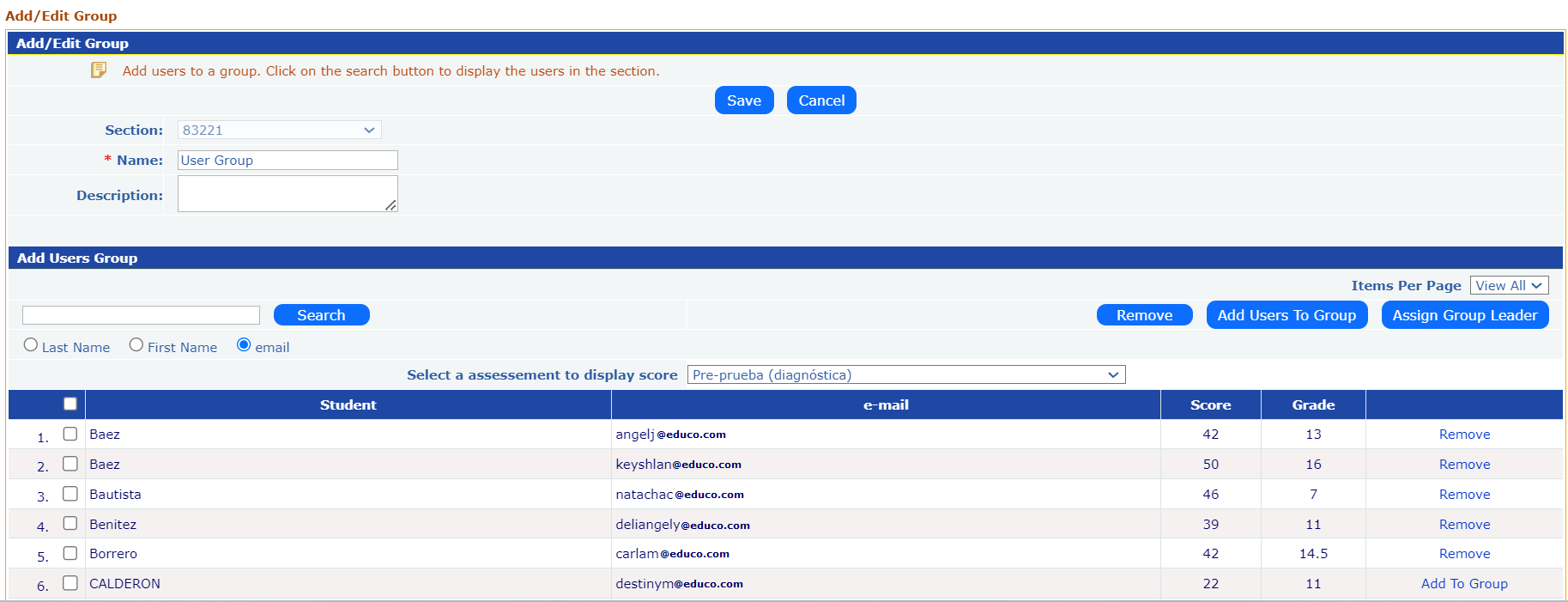
- You can remove individual student(s) from the group using the remove link.
- Alternatively, select multiple students and click the Remove button to remove them all.
- Select one student to assign as a group leader and click on ‘Assign Group Leader’ button.
- Click on ‘Save’ button to save the changes.
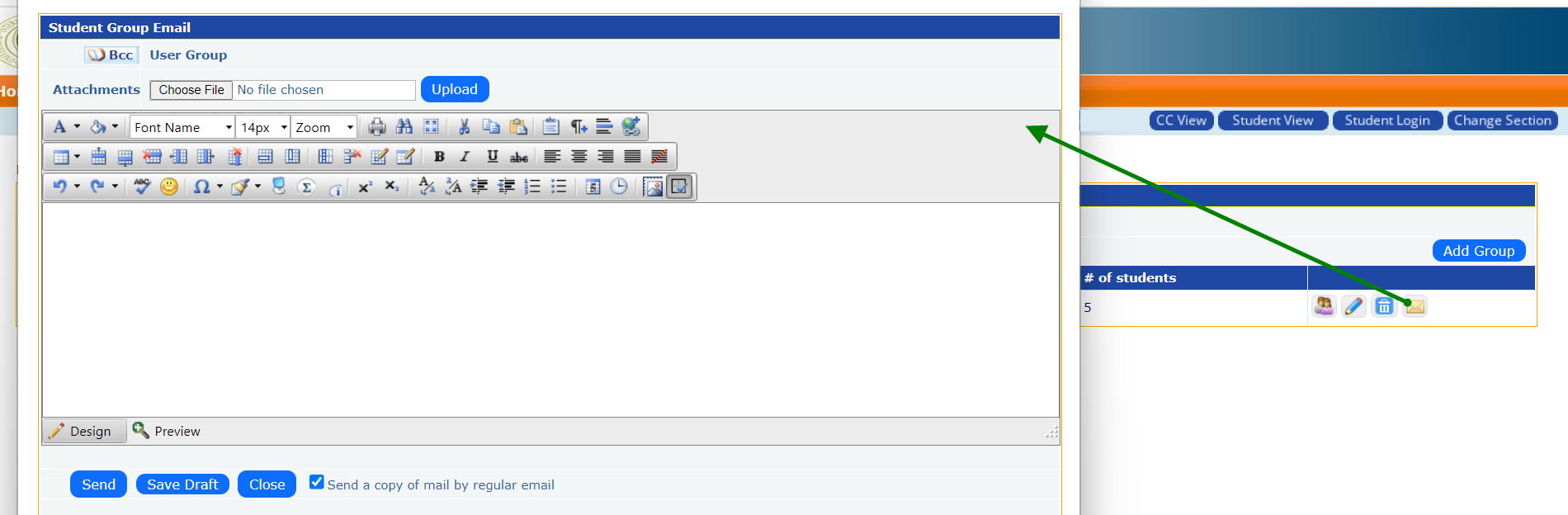
- Email Student Group: Click on Email
 icon to send email to all the students in the group.
- Delete Student Group: Click on the delete
 icon corresponding to the group to delete it.
Note:
- Student Groups must exist before creating Group Assessment.
- Taking Assessments, Max Attempts, and other assessment settings remains the same even though Students are enrolled in more than one group.
- Students who are unenrolled from the Group cannot see the Group Assessments.
- If the ‘Group of Students’ option is selected, the Prerequisite exempt link shows only users belonging to that group.