
Transferring Active/Dropped Students Across Sections
This feature allows instructor to search Active and Dropped students and those students can be assigned to other section of the same course assigned to the same instructor.
- Go to User Management > Transfer Student.

- User will be taken to the following screen.

- Select ‘Dropped Student’ from Transfer dropdown. On page load, all the dropped students will be listed.
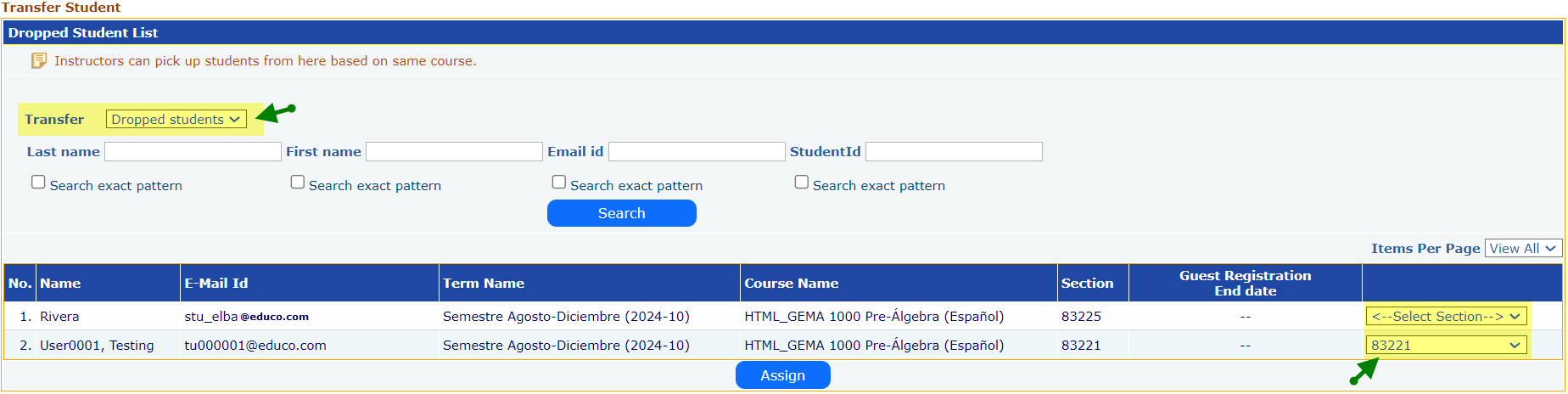
- Click on Select Section dropdown, corresponding to student, and select the section to which you want to assign the dropped student.
- Click on ‘Assign’ button, the student will be assigned to the selected section.
Alternatively, the instructor can search for the Active/Dropped students under “All” users, type some information of the student(s)s to be reassigned (transferred) to a different section.
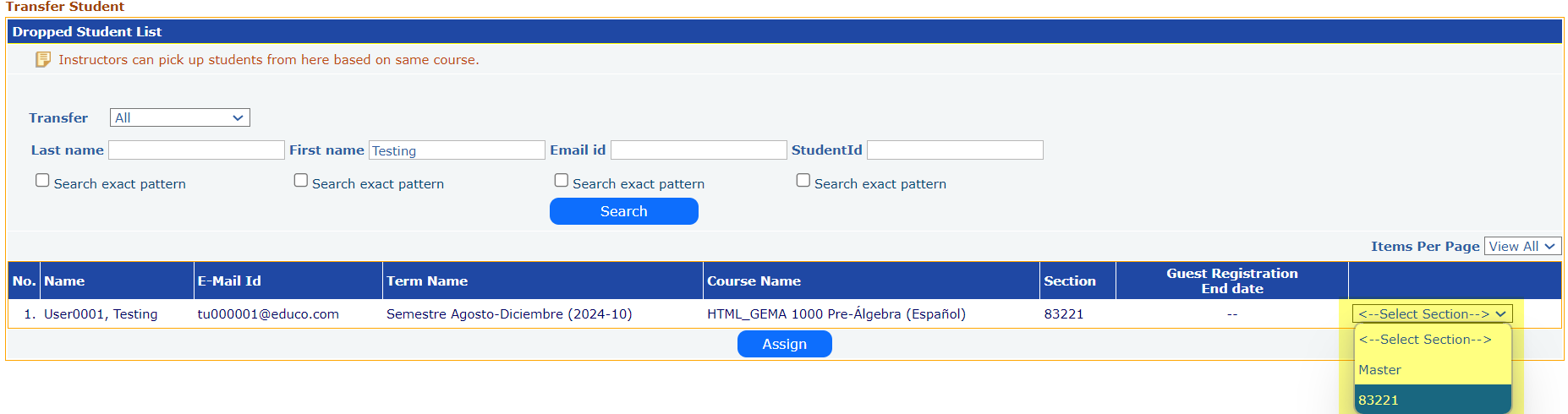
- Select ‘All’ from Transfer dropdown.
- Enter any of the inputs i.e. Last Name/First Name/Email Id or Student Id to search student, once done Click on ‘Search’ button as shown.
Note:
- Under search fields you can search the active/dropped student(s) of the select course within the same institution and assign to the required sections.
- To transfer student to a particular section. Click on ‘Select Section’ dropdown corresponding to student; select the desired section, as shown above and Click on Assign button, Student will be assigned to selected section.